Booking Menus and Service Durations
You can set a duration for each menu item, such as 30 minutes for a cut and 90 minutes for a colour. Customers are then only offered times when that much time is free in a row, so you no longer have to take every booking in one fixed slot length.
Add a menu item
- In Reservations, open "Setup" and choose "Services".
- Choose "Add a menu item".
- Enter the "Item name" and "Duration (minutes)".
- Enter a "Price", "Category" and "Description" if you need them.
- Choose "Save".
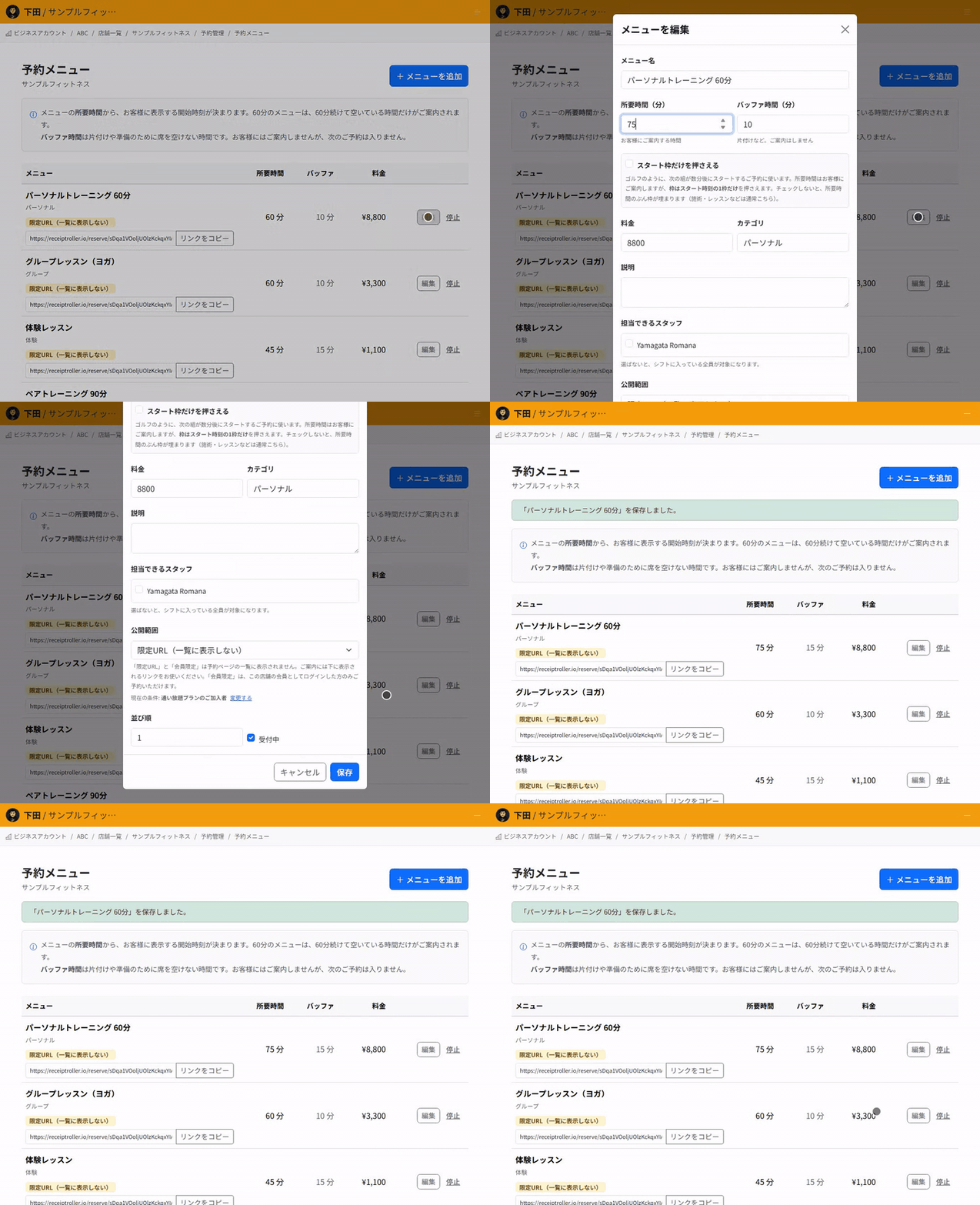
The duration is the time shown to customers. A 60-minute item is only offered at times when 60 minutes are free in a row.
The columns in the list change to match the fields you use. If no menu item has a buffer time or assigned staff, those columns are not shown.
Use buffer time to leave room for clean-up
When you set a buffer time, no new booking can start during that time after the service ends. Customers are not shown the buffer, so the service does not look longer than it is.
If you take back-to-back bookings without allowing time to clean up and prepare, everything after them starts to run late. This setting prevents that.
Choose which staff can take an item
For each menu item, you can choose the staff who can take it in "Staff who can take this". If you choose no one, everyone on shift is included.
Use this when only some of your staff provide a particular item.
Choose who can see and book each item
For each menu item, you can choose who can book it in "Who can book this". In the same store, you can offer items anyone can book alongside items only certain customers can book.
- Public — Shown in the list on your booking page, and anyone can book it. Every item you have not changed is Public.
- Link only — Not shown in the list. Customers book it from a link you send them.
- Members only — Not shown in the list, and only customers who meet your conditions can book it.
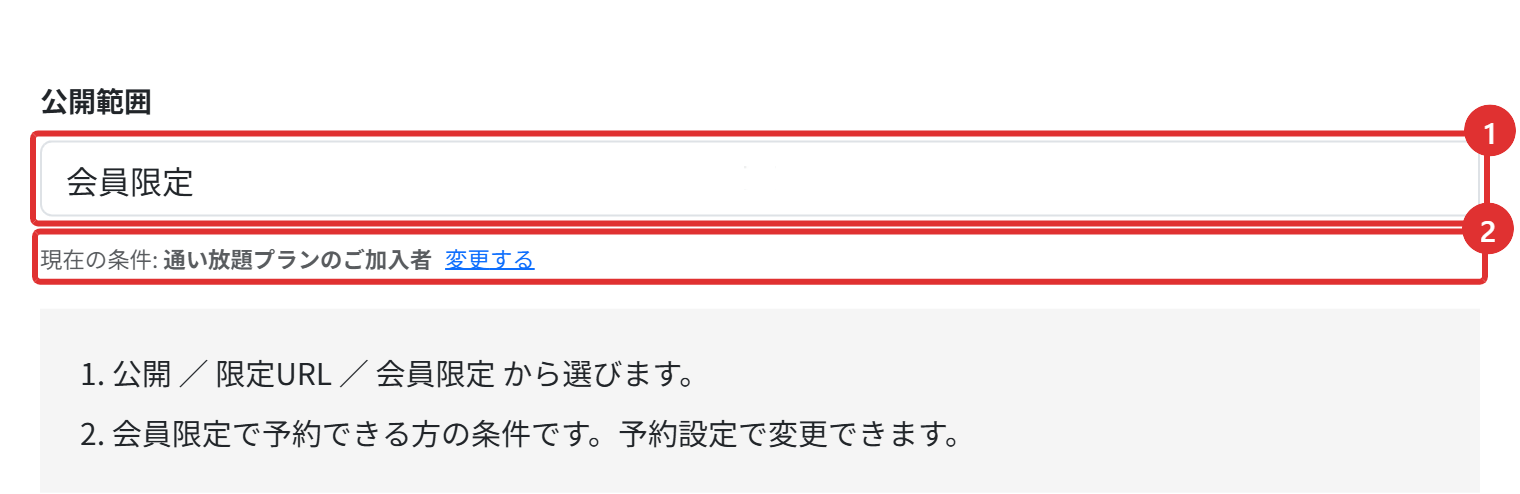
When you choose "Link only" or "Members only", a link to share appears in the menu list. No one can reach the item unless you give this link to your customers. Use "Copy link" to get it.
Decide who can book "Members only" items
You decide who counts as a member for each store. Set this under "Who can book a members-only menu" in "Reservation settings" in Reservations. Customers who match any of the following can book (you can choose more than one).
- Customers registered at this store — Anyone registered as a customer. Choose this for a class or school where only enrolled students should book.
- Subscribers to a monthly plan — Customers with an active monthly plan.
- Holders of a prepaid pass — Customers who have a prepaid pass with uses remaining.
If you choose none, "Subscribers to a monthly plan" is used. If your store does not sell a monthly plan and you set an item to "Members only", no one can book it. When that happens, a warning appears on the booking menu screen.
Choosing "Customers registered at this store" already includes subscribers and pass holders, so selecting the other two as well makes no difference.
Customers must be signed in before their membership can be checked. Let them know this when you share the link.
Hold only the start slot
When "Hold only the start slot" is on, customers are still shown the duration, but only the one slot at the start time is held.
Use this for operations like golf, where the next group starts a few minutes later. For treatments and lessons, normally leave it off. When it is off, slots are filled for the full duration.
Pausing a menu item
For an item you no longer offer, choose "Pause". It stops taking new bookings, but bookings already made stay as they are.
The item name recorded on past bookings does not change when you pause it.
Check before you go live
Add two items with different durations and check that the start times offered on your public booking page change when you switch between them.
If you set a buffer time, check that the time after each booking really is left free.
If you use "Link only" or "Members only", sign out, open your booking page yourself, and check that the item does not appear in the list.
Related articles
Staff Nomination Settings / Creating Reservations and Acceptance Settings / Setting Up Unlimited Plans / Creating and Running Session Passes / Automatically Holding the Half-Turn Tee Time
-
Editing the Booking PageHow to edit the welcome message, cancellation policy and notes shown on your customer-facing booking page, where each one appears, and what to write to cut down on questions.
-
Charging No-Show FeesHow to charge a cancellation fee to customers who do not show up. Covers the card-on-file setting, when the charge is made, and why a charge may not go through.
-
Staff Nomination SettingsHow to let customers choose a staff member before they book. Covers adding a nomination fee, what customers see on the booking page, and why staff must be registered first.
-
Setting Up Deposits and PrepaymentHow to take a deposit or full prepayment at the time of booking. Covers the four payment options, the Stripe connection you need first, what customers see, and what to check before you go live.
-
Refunds on CancellationHow payments taken in advance are refunded when a booking is cancelled. Covers the difference between customer and store cancellations and what to do after the cancellation deadline.