Refunds on Cancellation
Money taken as a deposit or prepayment is refunded automatically when a booking is cancelled before the cancellation deadline. The refunded amount stays on the booking record. Cancellations made by the customer and cancellations made by your store are handled differently.
Set the cancellation deadline
In "Basic settings" on the "Hours & slots" tab of Reservation settings, set how many hours before the booking you accept cancellations, using "Customer cancellation deadline (hours before)". This deadline is also used to decide whether to refund.
If you leave the deadline at 0, any cancellation up to the start time counts as within the deadline.
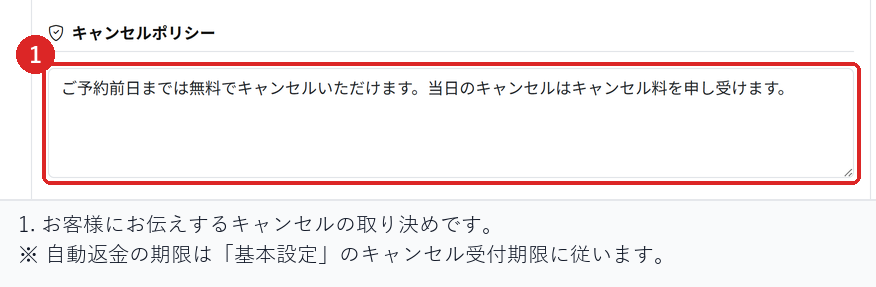
Enter the terms you want customers to know in "Cancellation policy" on the same tab. They are shown on the booking page and in the confirmation message.
When the customer cancels
Customers can cancel by themselves from the booking management link in their confirmation message. After the deadline, they can no longer cancel from this link.
If they cancel before the deadline, the money taken is refunded automatically, and the customer's screen shows that it has been refunded. Your store does not need to do anything.
When your store cancels
- In Reservations, open "Reservation list" and select the booking.
- In the reservation detail, select "Cancel".
If it is before the cancellation deadline, the refund is made straight away and the refunded amount is shown on screen.
If the deadline has passed, no automatic refund is made. The screen tells you the deadline has passed, so decide at your store whether to refund. To refund, use the Stripe dashboard. This decision is not automated because how stores handle late cancellations varies from store to store.
When only part has been refunded
If you have already made a partial refund in the Stripe dashboard, only the remaining amount is refunded. No refund is made for bookings that have already been refunded in full.
You can check the refund status in the reservation detail. Full and partial refunds are recorded as separate statuses, so you can answer customer questions directly from it.
Checks before you go live
Test both a cancellation before the deadline and one after it. Confirm that the first is refunded, and that the second is not refunded and a message is shown.
Also confirm that a cancellation made by the customer is refunded and that the customer's screen shows this.
Related articles
Setting Up Deposits and Prepayment / Charging No-Show Fees / Reservation Cancellations and Changes
-
Booking Menus and Service DurationsHow to set a duration for each booking menu item so customers are only offered times when that much time is free in a row. Covers buffer time, choosing which staff can take an item, visibility (Public, Link only, Members only) and who counts as a member.
-
Editing the Booking PageHow to edit the welcome message, cancellation policy and notes shown on your customer-facing booking page, where each one appears, and what to write to cut down on questions.
-
Charging No-Show FeesHow to charge a cancellation fee to customers who do not show up. Covers the card-on-file setting, when the charge is made, and why a charge may not go through.
-
Staff Nomination SettingsHow to let customers choose a staff member before they book. Covers adding a nomination fee, what customers see on the booking page, and why staff must be registered first.
-
Setting Up Deposits and PrepaymentHow to take a deposit or full prepayment at the time of booking. Covers the four payment options, the Stripe connection you need first, what customers see, and what to check before you go live.