Reservation Cancellations and Changes
Status changes such as canceling, completing, or marking a reservation as a no-show cancellation are done from the reservation details screen. Open the target reservation from the list or timeline, check the details, and then make the change.
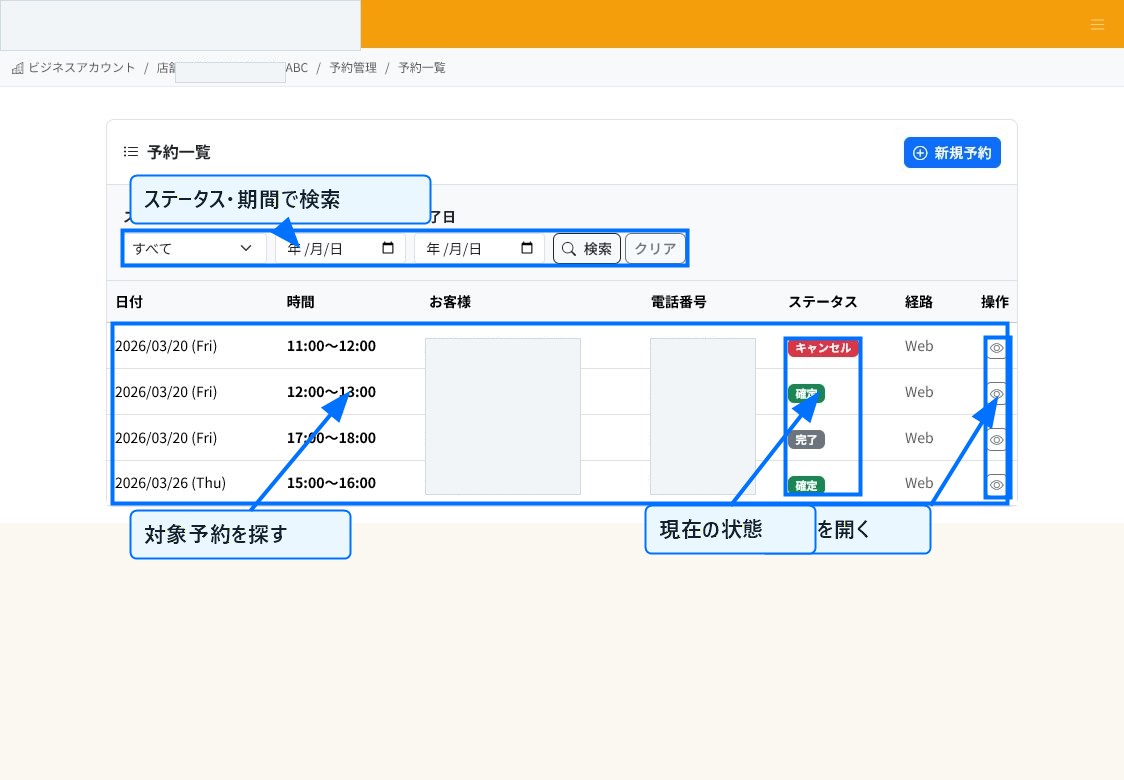
Open the Target Reservation
In the reservation list, specify the status or date range to find the reservation you want to change. Check the current status, then open the reservation details from the details button in the operations column.
You can also select a booked slot from the timeline screen to open its details. Check the date/time and customer information before changing the status.
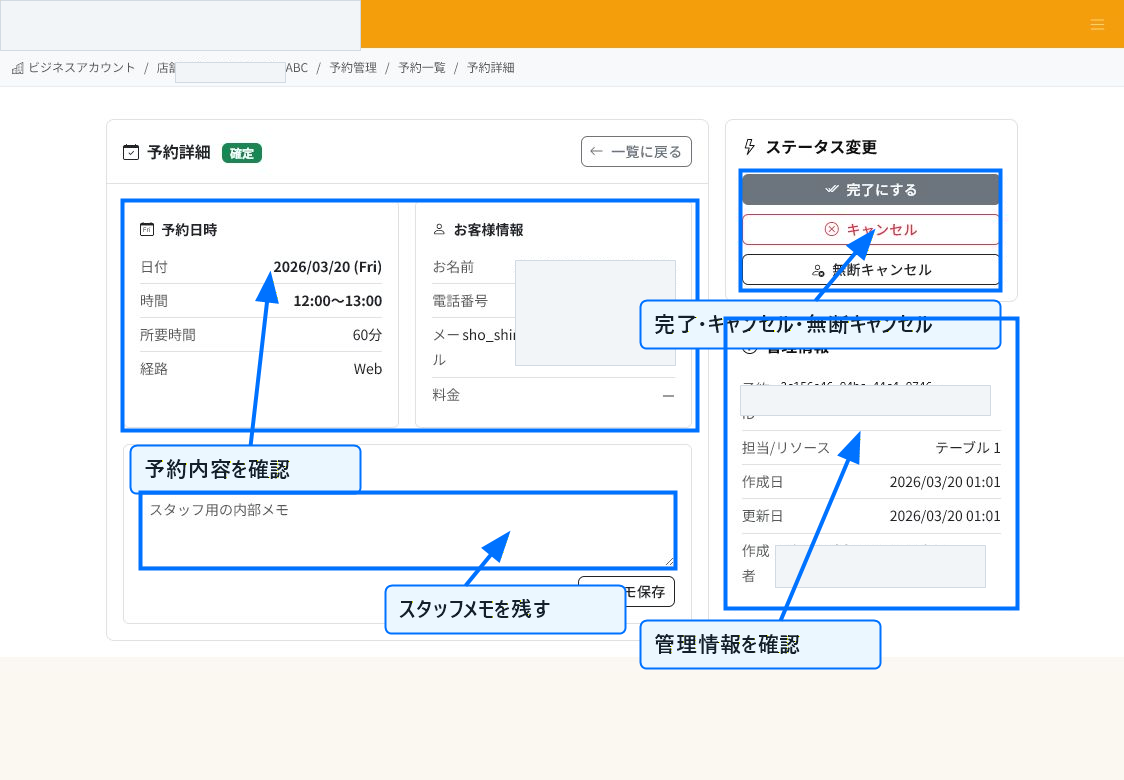
Change the Status From Reservation Details
On the reservation details screen, check the reservation date/time, customer information, channel, and management information. From the status change on the right, you can select "Mark as Completed," "Cancel," or "No-Show Cancel."
For unconfirmed reservations, "Confirm" is also displayed. Once a reservation is marked as completed, canceled, or no-show canceled, further changes are restricted, so please check the details before proceeding.
Changing the Date/Time
There is no feature to directly change the date/time or slot of an existing reservation. To change the date/time, cancel the current reservation and create a new reservation with the updated date/time.
If you need to contact the customer, leaving a note in the staff memo makes it easier for other staff to pick up the handoff.
Notes on Cancellation
A confirmation dialog is displayed for the cancellation operation. If cancellation notification emails are enabled, the customer may be notified along with the reservation status change.
Use "No-Show Cancel" when the customer does not show up even after the reservation time has passed. Change a reservation to "Completed" once the customer has visited or the service has been provided.
Related Articles
Checking the Reservation Calendar / Creating Reservations and Acceptance Settings
-
Creating Reservations and Acceptance SettingsExplains, with annotated screenshots, how staff register reservations, configure acceptance rules and slot duration, prepare available slots, and set up the customer-facing reservation page.
-
Checking the Reservation CalendarExplains, with annotated screenshots, how to check reservation status using the dashboard, timeline, and reservation list, including date navigation, availability legend, and filtered search.
-
What Is Reservation ManagementAn overview of ReceiptRoller's reservation management feature. Explains the basics of how staff register bookings, view the timeline, and send automatic notifications.
-
Reservation Notifications and Customer RemindersExplains, with annotated screenshots, how to configure reservation confirmation emails, pre-visit reminders, cancellation notifications, email templates, placeholders, and preview.
-
Analyzing Reservation DataExplains, with annotated screenshots, how to read the reservation dashboard statistics, narrow down the reservation list, and check cancellations and no-show cancellations.