Checking the Reservation Calendar
In reservation management, you can check reservation status in three ways: dashboard, timeline, and reservation list. Use the dashboard when you want a quick view of today's and tomorrow's counts, the timeline when you want to see by time slot and resource, and the reservation list when you want to filter by conditions.
Check Today's Status on the Dashboard
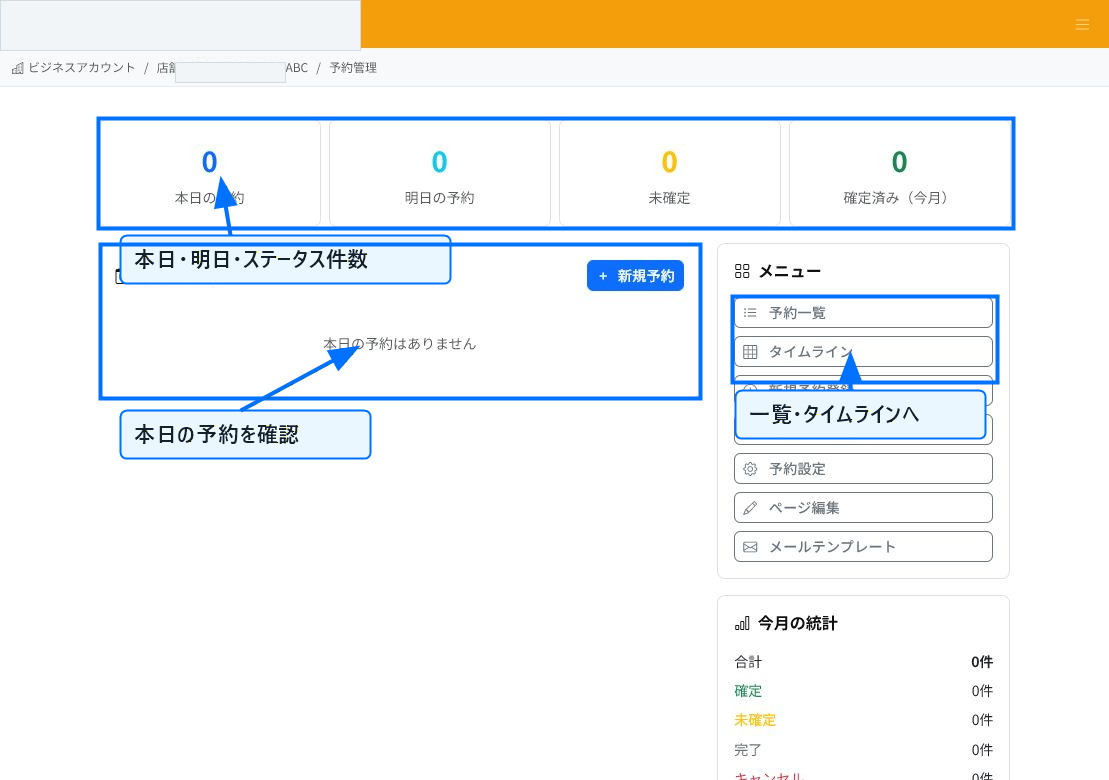
The top screen of reservation management lets you check today's reservations, tomorrow's reservations, unconfirmed, and confirmed counts. The today's reservations field shows reservations that need attention today.
You can move to the reservation list, timeline, new reservation registration, slot management, and more from the menu on the right. It's useful not just for checking status, but as an entry point to your next task.
Check Time Slots on the Timeline
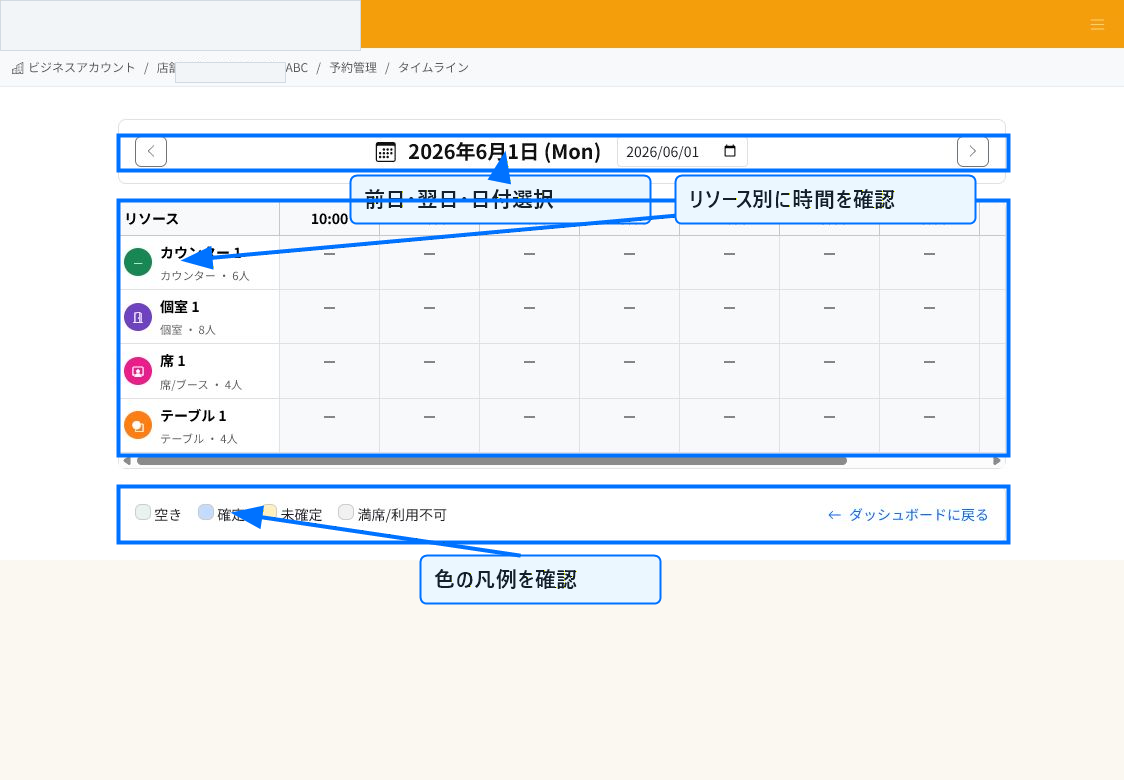
On the timeline, resources such as tables, private rooms, and staff are shown on the vertical axis, and time slots on the horizontal axis, letting you check the status for the whole day. Use the previous/next day buttons or the date input to switch the displayed day.
Color coding lets you check availability, confirmed, unconfirmed, fully booked, or unavailable slots. Moving from an open slot into creating a reservation reduces the effort of re-selecting the date and time.
Search With Conditions in the Reservation List
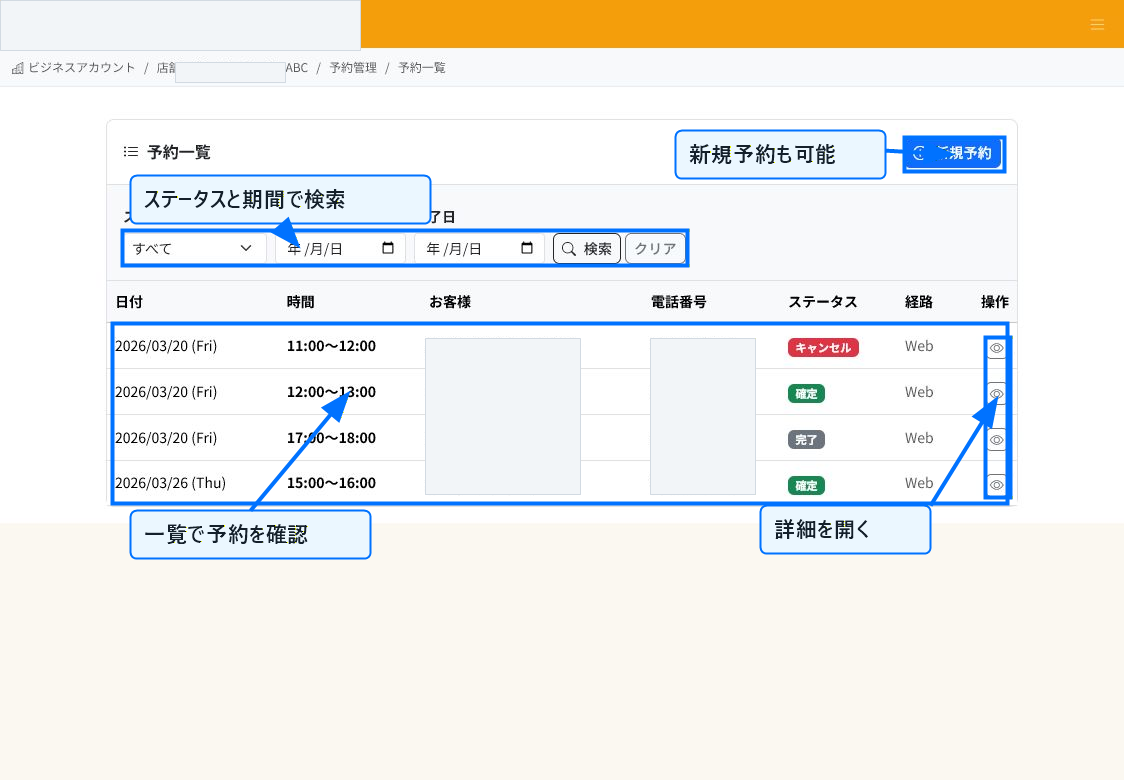
In the reservation list, you can search for reservations by specifying status and date range. It's useful for checking by status such as unconfirmed, confirmed, completed, canceled, or no-show canceled.
Opening reservation details from the operations column in the list lets you check customer information, reservation date/time, status, and notes. Update the status — confirm, cancel, etc. — from the details screen as needed.
Choosing the Right View
Use the dashboard when you want a quick overview of today's response status. Use the timeline when you want to see availability by seat or staff. Use the reservation list search when looking for past reservations or already-canceled reservations.
You can move from a booked slot or the details button in the list to reservation details. If there are unconfirmed reservations, have staff check the content and update the status to confirmed/canceled as appropriate.
Related Articles
Creating Reservations and Acceptance Settings / Reservation Cancellations and Changes
-
Creating Reservations and Acceptance SettingsExplains, with annotated screenshots, how staff register reservations, configure acceptance rules and slot duration, prepare available slots, and set up the customer-facing reservation page.
-
What Is Reservation ManagementAn overview of ReceiptRoller's reservation management feature. Explains the basics of how staff register bookings, view the timeline, and send automatic notifications.
-
Reservation Notifications and Customer RemindersExplains, with annotated screenshots, how to configure reservation confirmation emails, pre-visit reminders, cancellation notifications, email templates, placeholders, and preview.
-
Reservation Cancellations and ChangesExplains, with annotated screenshots, how to cancel, complete, or mark reservations as no-show cancellations, and how to handle date/time changes.
-
Analyzing Reservation DataExplains, with annotated screenshots, how to read the reservation dashboard statistics, narrow down the reservation list, and check cancellations and no-show cancellations.