Analyzing Reservation Data
Using the reservation dashboard and reservation list, you can quickly check today's and this month's reservation status, cancellation counts, and reservation channels. This article explains how to read these views for both daily checks and monthly reviews.
Open the Reservation Management Dashboard
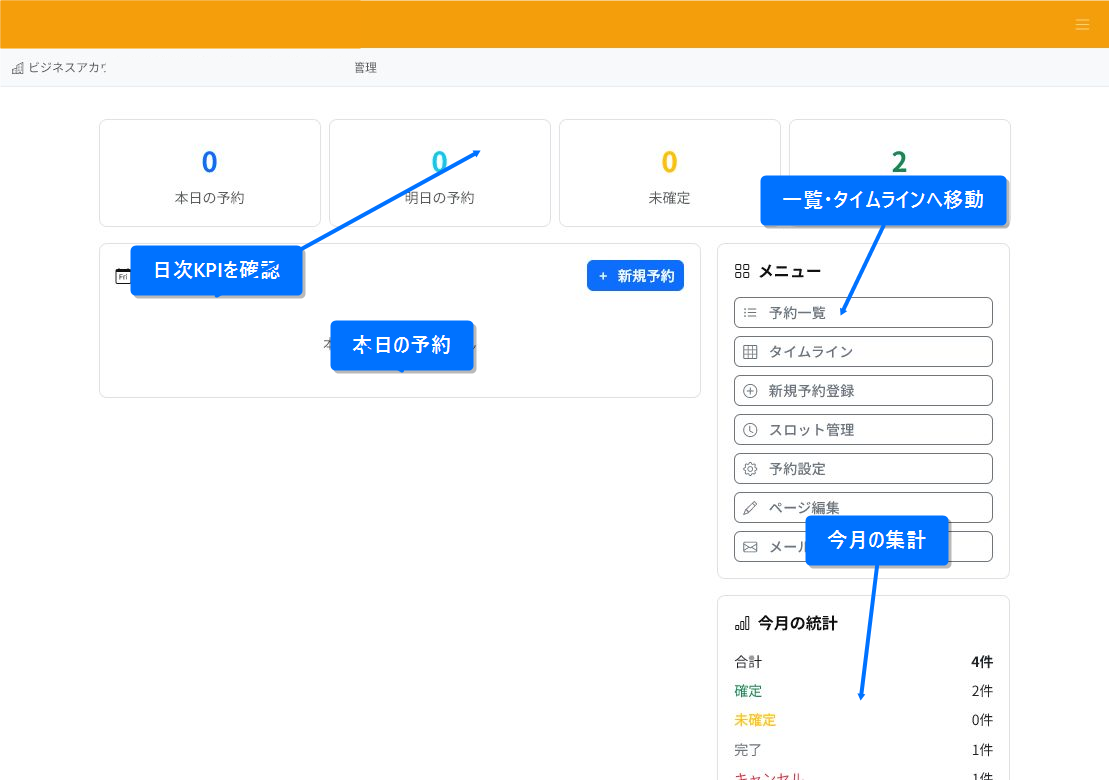
The top screen of reservation management lets you check today's, tomorrow's, unconfirmed, and this month's confirmed reservations as cards. When checking in the morning, first look at today's reservations and the number of unconfirmed items to confirm there are no reservations that need a response.
You can move to the reservation list or timeline from the menu on the right. Starting from the counts and then moving into detailed checks helps reduce the chance of missing something.
Check Counts by Status in This Month's Statistics
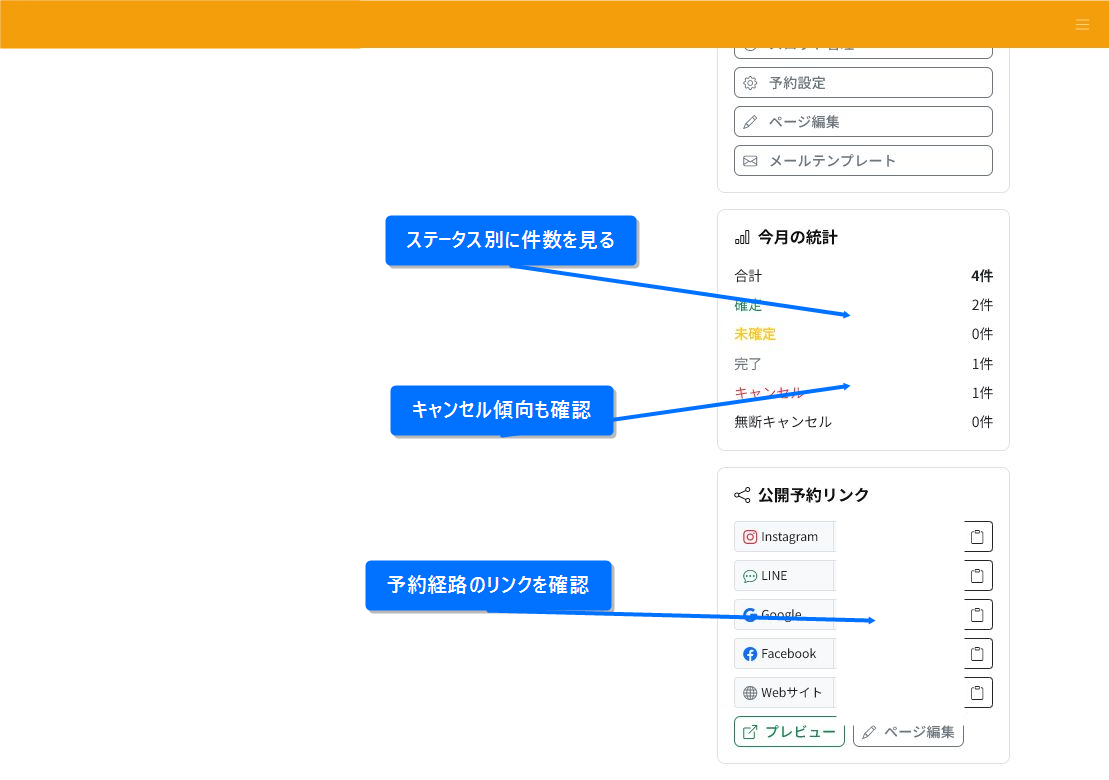
"This Month's Statistics" lets you check the total, confirmed, unconfirmed, completed, canceled, and no-show canceled counts together. For months where reservations are increasing, looking at the cancellation and no-show cancellation counts together is useful for reviewing your acceptance rules and reminders.
You can also check public reservation links on the same screen. Keeping track of which entry points — Instagram, LINE, Google, Facebook, your website, etc. — are directing customers to the reservation page makes it easier to trace reservation channels.
Narrow Down by Specifying Conditions in the Reservation List
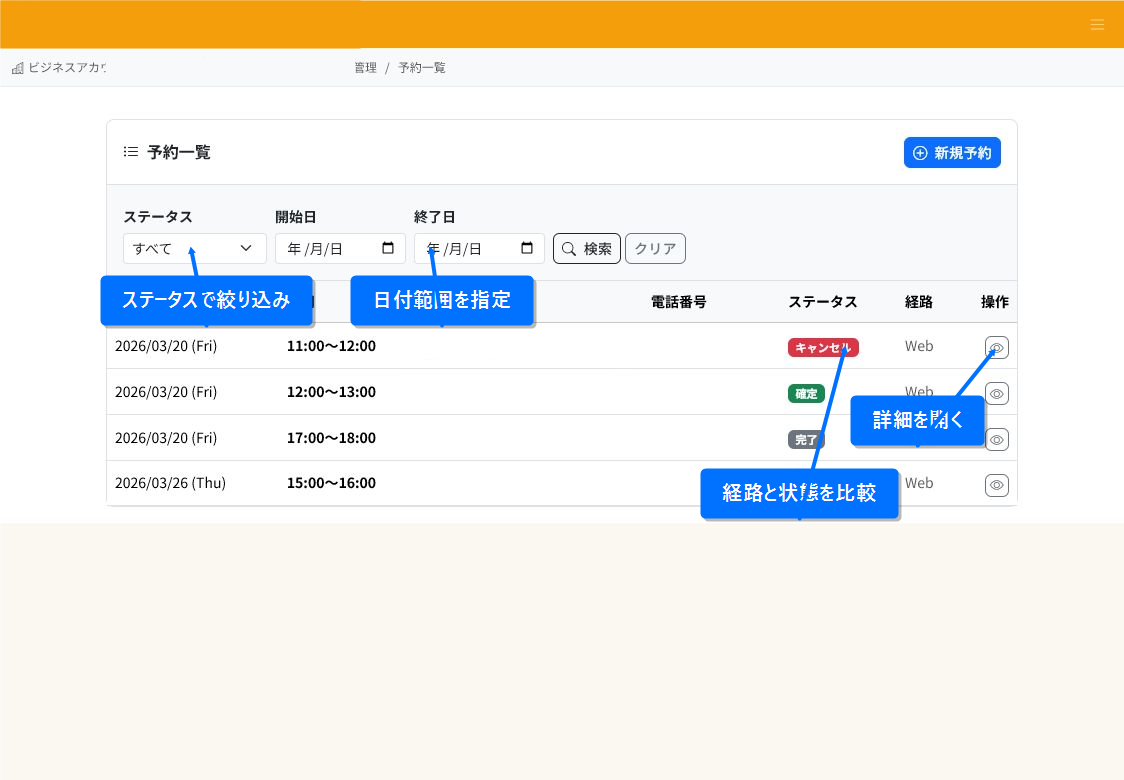
In the reservation list, you can narrow down reservations by specifying the status, start date, and end date. For a monthly review, enter the start and end dates of the target month, then search while switching statuses.
The list displays the date, time, status, and channel. To check a specific reservation, open the reservation details from the details button on the right.
Check Cancellations and No-Show Cancellations
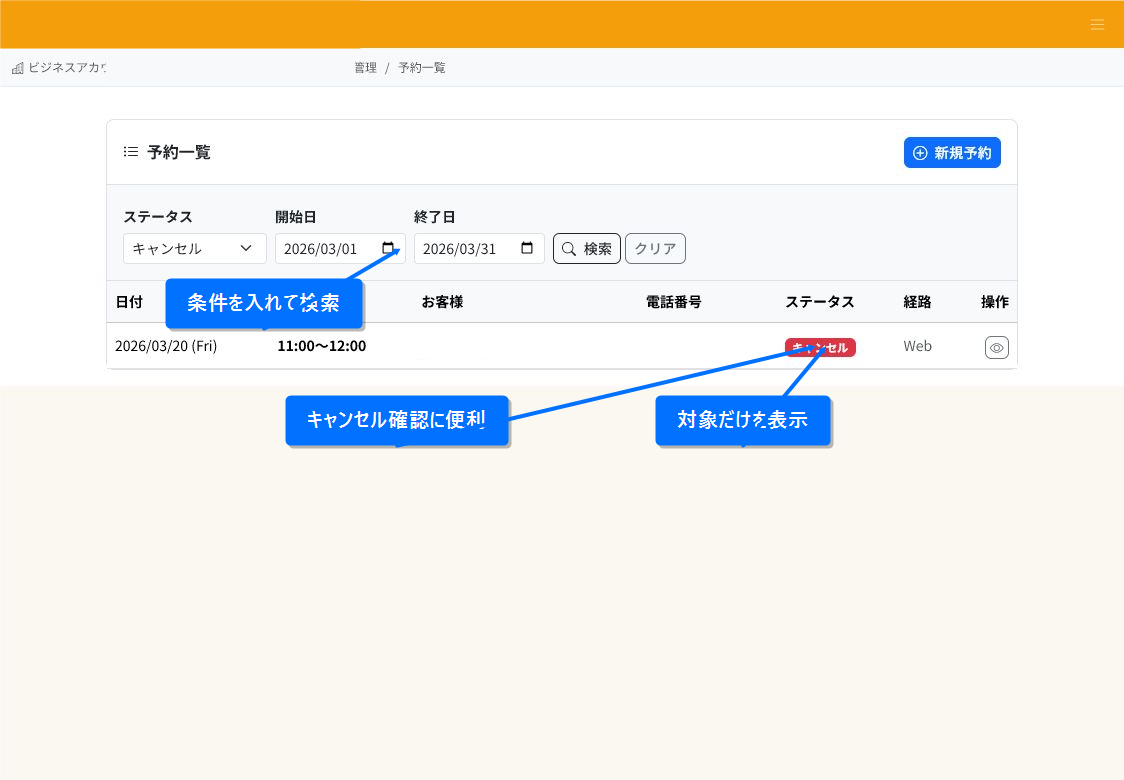
To check only cancellations, select "Canceled" under status and search with a specified date range. No-show cancellations can be filtered the same way.
If a particular time slot or menu has a high number of cancellations, this data becomes useful material for reviewing your cutoff time, reservation capacity, email templates, and reminder content.
Points to Check
- For daily checks, prioritize looking at today's, tomorrow's, and unconfirmed counts.
- For monthly reviews, compare confirmed, completed, canceled, and no-show canceled counts across the target month.
- When cancellations increase, check reservation acceptance settings, time slots, and notifications/reminders together.
- If you use multiple reservation channels, check which one your public reservation link is being directed from is up to date.
Related Articles
-
Creating Reservations and Acceptance SettingsExplains, with annotated screenshots, how staff register reservations, configure acceptance rules and slot duration, prepare available slots, and set up the customer-facing reservation page.
-
Checking the Reservation CalendarExplains, with annotated screenshots, how to check reservation status using the dashboard, timeline, and reservation list, including date navigation, availability legend, and filtered search.
-
What Is Reservation ManagementAn overview of ReceiptRoller's reservation management feature. Explains the basics of how staff register bookings, view the timeline, and send automatic notifications.
-
Reservation Notifications and Customer RemindersExplains, with annotated screenshots, how to configure reservation confirmation emails, pre-visit reminders, cancellation notifications, email templates, placeholders, and preview.
-
Reservation Cancellations and ChangesExplains, with annotated screenshots, how to cancel, complete, or mark reservations as no-show cancellations, and how to handle date/time changes.