Setting Up Deposits and Prepayment
You can take a deposit or the full amount at the time of booking. Payments go straight into your store's Stripe account and do not pass through ReceiptRoller. This article explains the payment options and how to set them up.
There are four payment options
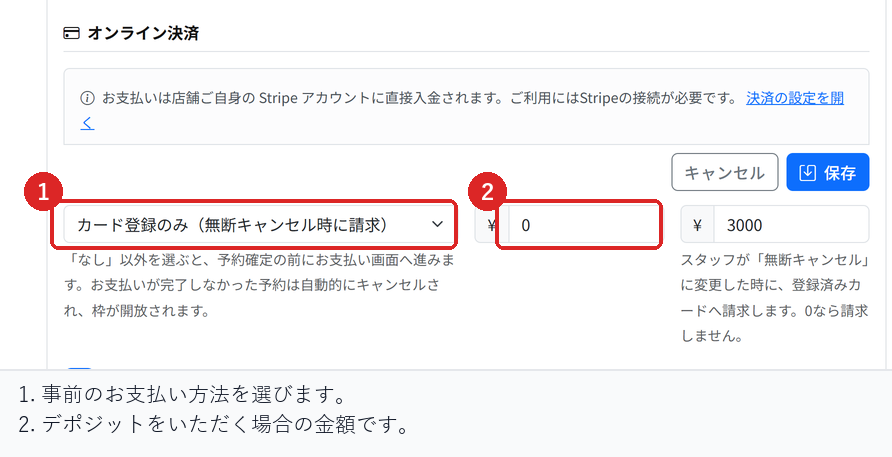
On the "Pricing & payment" tab of Reservation settings, choose one of the following under "Payment at booking".
- None (pay on arrival): no online payment is taken. This is the default.
- Take a deposit up front: a fixed amount is taken in advance and deducted from the bill on the day.
- Take the full amount up front: the customer pays the full price in advance. Common for golf and one-off lessons.
- Card on file only (charged on no-show): only the card details are saved and nothing is charged. You can charge the card only if the customer does not show up.
How to set it up
- In Reservations, open "Setup" and select "Reservation settings".
- Open the "Pricing & payment" tab.
- Choose a payment option. For a deposit, enter the amount in "Deposit".
- Select "Save" at the bottom of the screen.
The cancellation deadline is in "Basic settings" on the "Hours & slots" tab. Cancellations made before this deadline are refunded automatically, so check it as well.
Stripe must be set up first
To take payments, your business account must have finished connecting to Stripe. Until it is connected, customers cannot go on to the payment page.
Amounts are shown excluding tax. Consumption tax is added for customers with a Japanese address.
What the customer sees
When the customer enters the date and time and their details and submits, they go on to the payment page. The booking is confirmed once payment is complete.
If the customer closes the payment page, the booking is not confirmed. If you want to hold the slot while waiting for confirmation, also check the hold option ("Treat as a hold") in Reservation settings.
Checks before you go live
Make a test booking and confirm that it goes on to the payment page, that the booking is confirmed after payment, and that the amount is recorded in the reservation detail.
If you set a cancellation deadline, confirm both that a cancellation before the deadline is refunded and that a cancellation after the deadline is not refunded automatically.
Related articles
Charging No-Show Fees / Refunds on Cancellation / Creating Reservations and Acceptance Settings
-
Booking Menus and Service DurationsHow to set a duration for each booking menu item so customers are only offered times when that much time is free in a row. Covers buffer time, choosing which staff can take an item, visibility (Public, Link only, Members only) and who counts as a member.
-
Editing the Booking PageHow to edit the welcome message, cancellation policy and notes shown on your customer-facing booking page, where each one appears, and what to write to cut down on questions.
-
Charging No-Show FeesHow to charge a cancellation fee to customers who do not show up. Covers the card-on-file setting, when the charge is made, and why a charge may not go through.
-
Staff Nomination SettingsHow to let customers choose a staff member before they book. Covers adding a nomination fee, what customers see on the booking page, and why staff must be registered first.
-
Refunds on CancellationHow payments taken in advance are refunded when a booking is cancelled. Covers the difference between customer and store cancellations and what to do after the cancellation deadline.