Creating and Running Session Passes
You can create session passes, such as the "10-session pass" often used by classes and lessons. When a customer buys a pass they receive credits, one credit is used for each booking, and it comes back if they cancel. Customers can check their remaining credits and expiry date themselves in the mini app, so you get fewer "how many do I have left?" questions.
Creating a pass
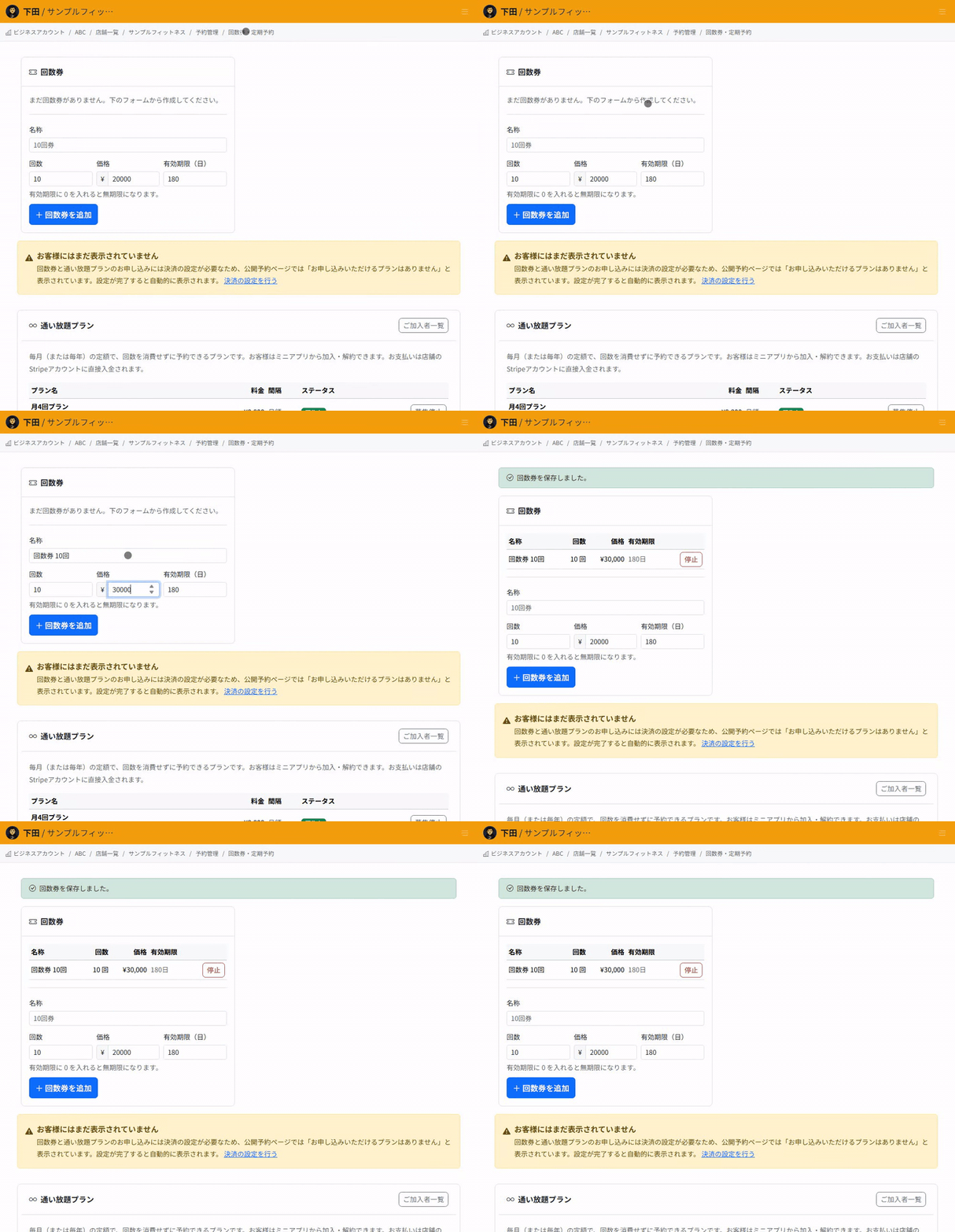
Create passes from the "Passes and recurring bookings" screen in Reservations.
- Name: shown to customers (for example, 10-session pass or 4 sessions a month)
- Credits: one credit is used per booking
- Price: the amount the customer pays when buying
- Validity (days): the number of days from the purchase date. Enter 0 for no expiry
How customers buy a pass
Customers buy passes from the booking screen in the mini app. Credits are added once payment is complete, so simply closing the payment screen does not activate the pass.
To sell passes, your store needs to connect its own Stripe account. Payments go straight into your store's account; ReceiptRoller never receives them.
How remaining credits go up and down
- A booking uses one credit
- Cancelling a booking returns one credit
- A booking recorded as a no-show does not return the credit
- Passes closest to their expiry date are used first
Even when a customer holds several passes, the order is adjusted automatically so that none go to waste by expiring.
Stopping sales
Select "Stop selling" on a pass to stop new sales. Passes customers already hold stay valid, and their remaining credits can still be used.
Related articles
-
Setting Up Unlimited PlansHow to set up a flat monthly or yearly plan that lets subscribers book without using pass credits. Covers how it differs from session passes, joining and cancelling, and closing a plan to new members.
-
How to Read the Store DashboardHow to read the Store Dashboard, which shows all your stores, and Store Details, which shows one store: today's sales and bookings, and where each feature lives.
-
Moving from Another System (CSV Import)How to import your member list and remaining session pass credits from another system. Covers the check-then-import flow, how rows are matched to existing customers, and why you should not import the same file twice.
-
Setting Up Recurring BookingsHow to register bookings for the same day and time each week, such as every Tuesday at 7 pm, in one go. Also covers how days without slots are skipped and what happens when you end a recurring booking.
-
Automatically Holding the Half-Turn Tee TimeHow to hold the IN tee time at the same time as the OUT start slot, covering course pairings, the time between halves, and what happens when the second half cannot be held.