Moving from Another System (CSV Import)
You can import, in one go, the member list exported from the system you use now together with the remaining credits on session passes. Credits your customers have already paid for carry over as they are, so there is no need to register everything again from scratch.
How the import works
- In Reservations, open "Setup" and choose "Import from another system".
- Select "Download CSV template" and check the format.
- Arrange the data exported from your current system to match the template.
- Choose the file and select "Check the file".
- Review the results, and if everything looks right, select "Import".
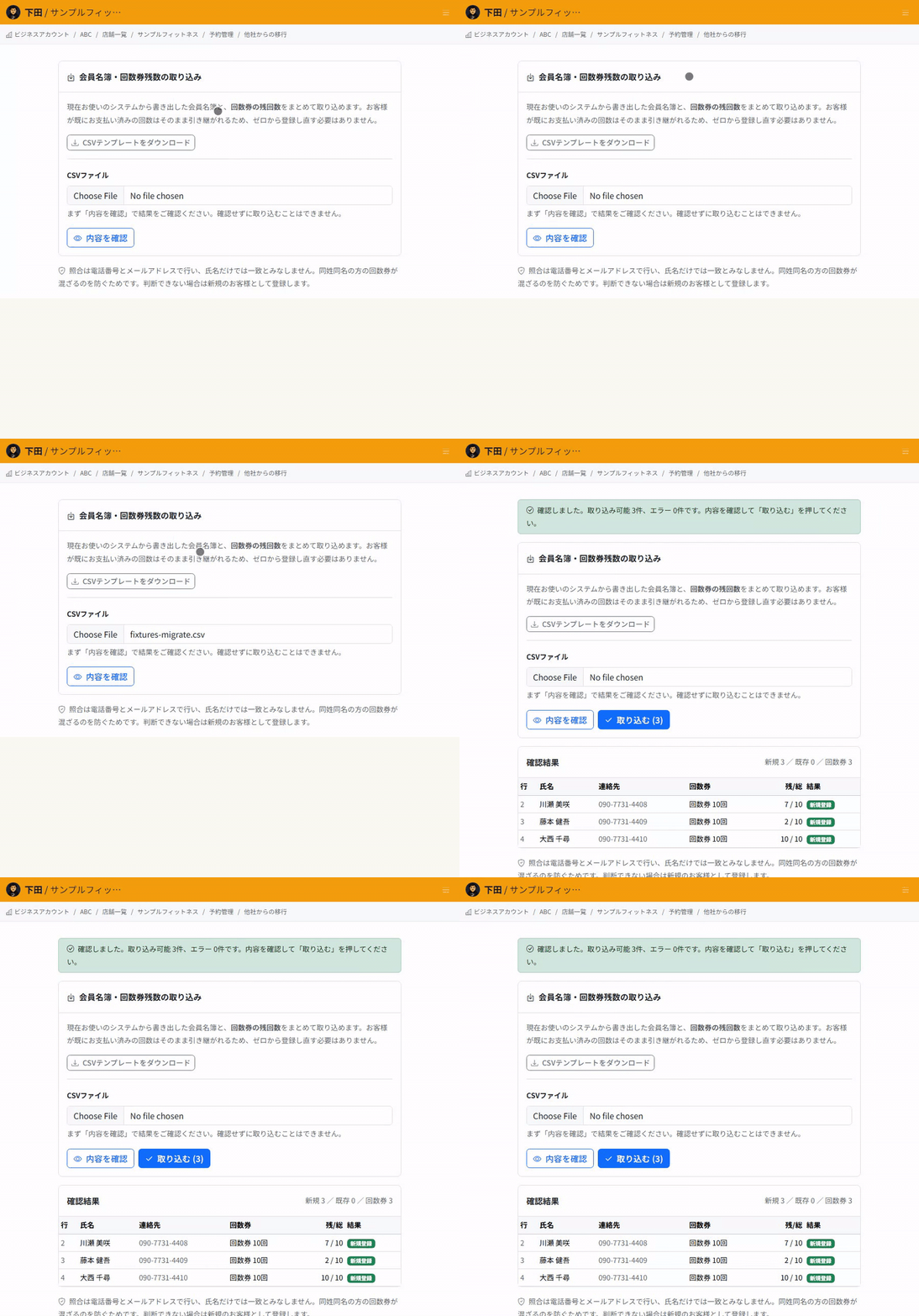
You cannot import without checking first. The flow makes you look at the counts and matching results before you run the import.
Reading the check results
Each row shows one of the following.
- Create new: the customer is registered as a new customer.
- Add to existing: the row is matched to a customer who is already registered, and the session pass is added to that customer. The name of the matched customer is also shown.
- Errors: the row cannot be imported. The reason is shown.
At the top, the counts of new customers, existing customers and passes, and the number of errors, are shown together.
Matching uses phone number and email address
Whether a customer is already registered is decided by phone number and email address. A matching name alone is not treated as a match.
This prevents passes from getting mixed up between people with the same name. When a match cannot be confirmed, the customer is registered as new.
Do not import the same file twice
If you import the same file again, customers are matched as existing by phone number and email address, but the session passes are added again. Remaining credits would be doubled.
Run the import only once. The screen after the import shows the same warning.
What to check before you start
Run "Check the file" on a file with just a few rows, and confirm that new and existing customers are identified as you expect. Also confirm that a row with the same phone number as an existing customer shows "Add to existing".
After the import, confirm that the remaining session pass credits match your previous system. We recommend trying a few test rows before importing your real data.
Related articles
Creating and Running Session Passes / Setting Up Unlimited Plans / Recording Attendance and Makeups
-
Setting Up Unlimited PlansHow to set up a flat monthly or yearly plan that lets subscribers book without using pass credits. Covers how it differs from session passes, joining and cancelling, and closing a plan to new members.
-
Creating and Running Session PassesHow to create session passes such as a 10-session pass, let customers buy them, and use up one credit per booking. Also covers setting an expiry and how credits are returned on cancellation.
-
How to Read the Store DashboardHow to read the Store Dashboard, which shows all your stores, and Store Details, which shows one store: today's sales and bookings, and where each feature lives.
-
Setting Up Recurring BookingsHow to register bookings for the same day and time each week, such as every Tuesday at 7 pm, in one go. Also covers how days without slots are skipped and what happens when you end a recurring booking.
-
Automatically Holding the Half-Turn Tee TimeHow to hold the IN tee time at the same time as the OUT start slot, covering course pairings, the time between halves, and what happens when the second half cannot be held.