Recording Attendance and Makeups
You can list the attendees for each class and record attendance for all of them at once. The screen is designed for smartphones, so you can enter it with one hand between classes.
Recording attendance
Open the "Attendance & makeups" screen in Reservations and choose a date to see that day's classes. Choose a class to see its list of attendees.
The fastest way is to press "Mark all present" first, then change only the people who were absent.
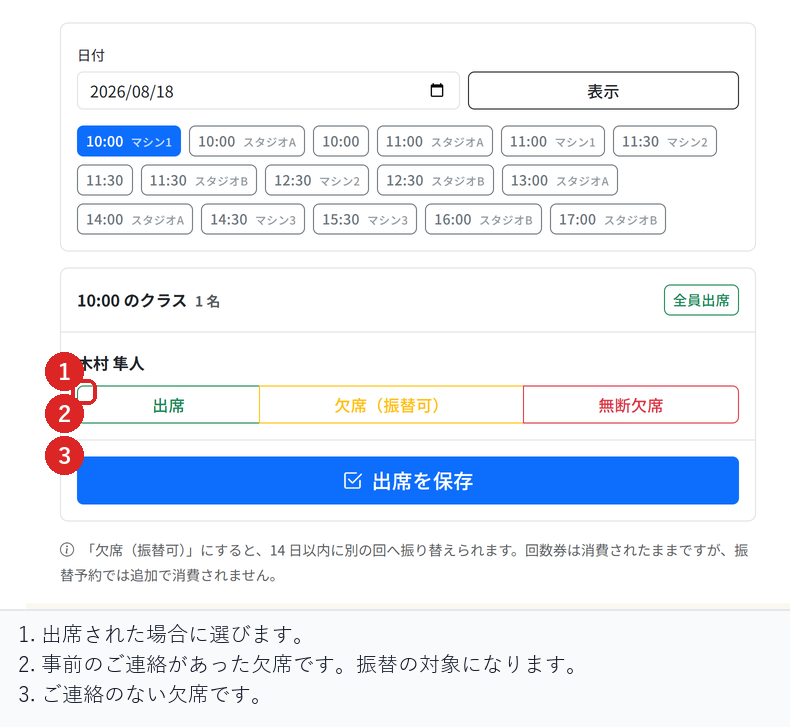
The three records
- Present: the customer attended. The session pass credit stays used
- Excused: an absence the customer let you know about, for example in advance. The credit stays used, but the customer can switch to another session
- No-show: an absence without notice. The credit is not returned and no makeup is possible
"Excused" only appears if you have set a makeup window.
Correcting a record later
Even after saving, reopening the same screen shows the current records. If you pressed the wrong option, choose again and save to correct it. However, a session that has already been made up cannot be changed back.
Setting the makeup window
In "Attendance and makeups" on the "Advanced" tab of the reservation settings, set how many days customers have to make up an absence. Set it to 0 to not offer makeups; "Excused" will then not appear on the attendance screen either.
Creating a makeup booking
A session recorded as "Excused" can be switched to another session within the window. When you create a makeup booking, the original absence becomes "Makeup used", and the same absence cannot be made up twice.
A makeup booking does not use an additional session pass credit. This is because the customer is attending, on another day, the one lesson they already paid for.
Related articles
-
Setting Up Unlimited PlansHow to set up a flat monthly or yearly plan that lets subscribers book without using pass credits. Covers how it differs from session passes, joining and cancelling, and closing a plan to new members.
-
Creating and Running Session PassesHow to create session passes such as a 10-session pass, let customers buy them, and use up one credit per booking. Also covers setting an expiry and how credits are returned on cancellation.
-
How to Read the Store DashboardHow to read the Store Dashboard, which shows all your stores, and Store Details, which shows one store: today's sales and bookings, and where each feature lives.
-
Moving from Another System (CSV Import)How to import your member list and remaining session pass credits from another system. Covers the check-then-import flow, how rows are matched to existing customers, and why you should not import the same file twice.
-
Setting Up Recurring BookingsHow to register bookings for the same day and time each week, such as every Tuesday at 7 pm, in one go. Also covers how days without slots are skipped and what happens when you end a recurring booking.