Generating the Inventory Calendar
Registering rooms or rental items alone does not let you take bookings yet. You also need to generate an inventory calendar for the period you want to sell. If you forget this step, those days look fully booked to customers.
How to generate it
- In Reservations, open "Setup" and select "Rooms & rentals".
- In the row for the item, set the "Start date" and "End date".
- Select "Generate inventory".
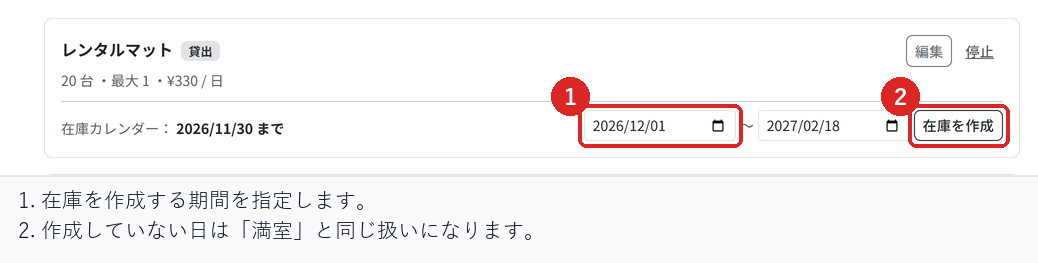
The start date is prefilled with the day after the last generated date, and the end date is prefilled with a date six months ahead. If you generate with these values as they are, the next period is added on.
How ungenerated days look
Days without a generated inventory calendar are shown to customers as having no availability. They look "fully booked" rather than "not open for bookings yet", so customers will not even contact you about them.
Before you start taking bookings, always check that the period you want to sell has been generated.
The screen shows how far the calendar goes
For each item, the screen shows the date the inventory calendar has been generated through.
- If nothing has been generated, it says bookings cannot be taken.
- If less than a month is left, it says the calendar is running out soon.
- If there is plenty left, it shows the last generated date.
When you see a warning, generate the next period. The warning is there so bookings do not stop without you noticing.
Generate on a regular schedule
The inventory calendar is not extended automatically. Make it a routine to generate the next period at a set time, such as once a month.
Generating over a period that has already been generated causes no problems, and existing bookings are not removed.
Checks before you go live
Before generating inventory, open your public booking page and confirm that the period is shown as having no availability.
After generating inventory, open the same period and confirm that it can now be booked. Also confirm that the screen shows the last generated date.
Related articles
Setting Up Room and Rental Stock / Creating Reservations and Acceptance Settings / Closing Slots in Bulk and Pushing Back Start Times
-
Booking Menus and Service DurationsHow to set a duration for each booking menu item so customers are only offered times when that much time is free in a row. Covers buffer time, choosing which staff can take an item, visibility (Public, Link only, Members only) and who counts as a member.
-
Editing the Booking PageHow to edit the welcome message, cancellation policy and notes shown on your customer-facing booking page, where each one appears, and what to write to cut down on questions.
-
Charging No-Show FeesHow to charge a cancellation fee to customers who do not show up. Covers the card-on-file setting, when the charge is made, and why a charge may not go through.
-
Staff Nomination SettingsHow to let customers choose a staff member before they book. Covers adding a nomination fee, what customers see on the booking page, and why staff must be registered first.
-
Setting Up Deposits and PrepaymentHow to take a deposit or full prepayment at the time of booking. Covers the four payment options, the Stripe connection you need first, what customers see, and what to check before you go live.