Closing Slots in Bulk and Pushing Back Start Times
You can close slots in bulk for an unplanned closure, a competition or a private hire. On a day that is running behind, you can also push back the start times for the rest of the day in one go. There is no need to change slots one at a time. Both are done from the "Slot management" screen.
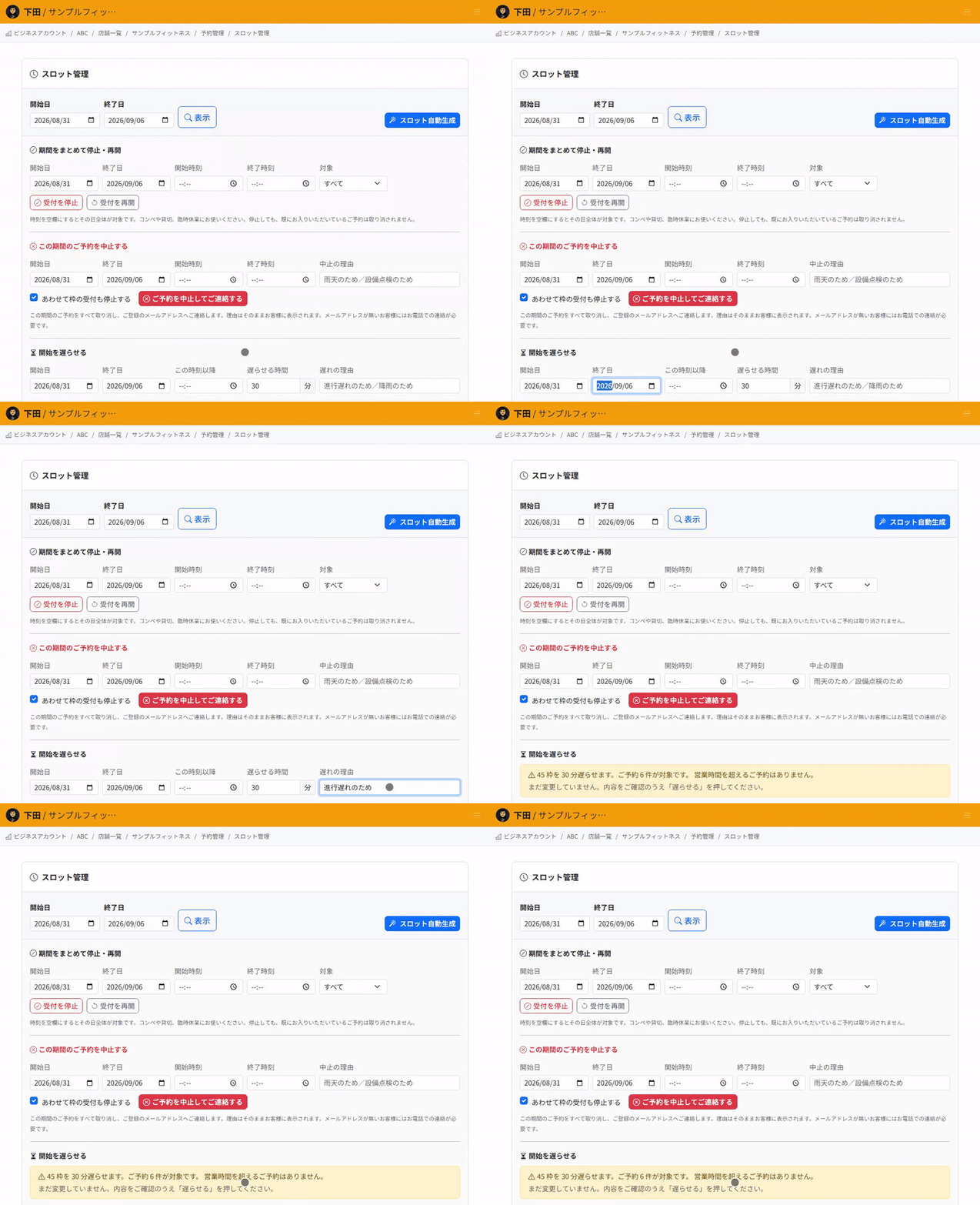
Close or reopen a range of dates
- In Reservations, open "Setup" and choose "Slot management".
- In "Close or reopen a range", enter the "From date" and "To date".
- To cover only certain hours, also enter the "From time" and "To time". Leave them blank to cover the whole day.
- To cover only certain seats or courses, choose them in "Applies to". To cover everything, leave it set to "All".
- Choose "Stop taking bookings". To reopen, choose "Start taking bookings".
Closing slots does not cancel bookings already made. It only stops new bookings. The number of affected bookings is shown afterwards, so use it to contact those customers.
Push back start times
Use this on a day that is running behind, or when the weather delays the start. The slots themselves move, so booking assignments and the running order stay the same.
- Use "Start later" on the same Slot management screen.
- Enter the period and "From this time".
- Enter the delay in minutes in "Delay by".
- Enter the "Reason" for the delay. It is used in the message to customers.
- Choose "Preview" first.
Check the impact before applying
When you choose "Preview", you see how many slots will move and how many bookings would run past closing time. Nothing has changed yet at this point.
Once you have checked the details, choose "Apply delay" to go ahead. For bookings that would run past closing time, you can choose to leave them as they are or cancel them and notify the customers.
If you turn on "Tell customers about the change", customers whose bookings moved are sent a message about the change.
Check before you go live
Close a test slot for a set period and check that the period no longer appears on your public booking page. Then reopen it and check that it comes back.
For pushing back start times, check that "Preview" shows the counts and that the slots have not moved yet at that point. After applying, also check that the order of bookings and the assigned staff have not changed.
Related articles
Automatically Holding the Half-Turn Tee Time / Using the Timeline / Creating Reservations and Acceptance Settings
-
Booking Menus and Service DurationsHow to set a duration for each booking menu item so customers are only offered times when that much time is free in a row. Covers buffer time, choosing which staff can take an item, visibility (Public, Link only, Members only) and who counts as a member.
-
Editing the Booking PageHow to edit the welcome message, cancellation policy and notes shown on your customer-facing booking page, where each one appears, and what to write to cut down on questions.
-
Charging No-Show FeesHow to charge a cancellation fee to customers who do not show up. Covers the card-on-file setting, when the charge is made, and why a charge may not go through.
-
Staff Nomination SettingsHow to let customers choose a staff member before they book. Covers adding a nomination fee, what customers see on the booking page, and why staff must be registered first.
-
Setting Up Deposits and PrepaymentHow to take a deposit or full prepayment at the time of booking. Covers the four payment options, the Stripe connection you need first, what customers see, and what to check before you go live.