Using the Timeline
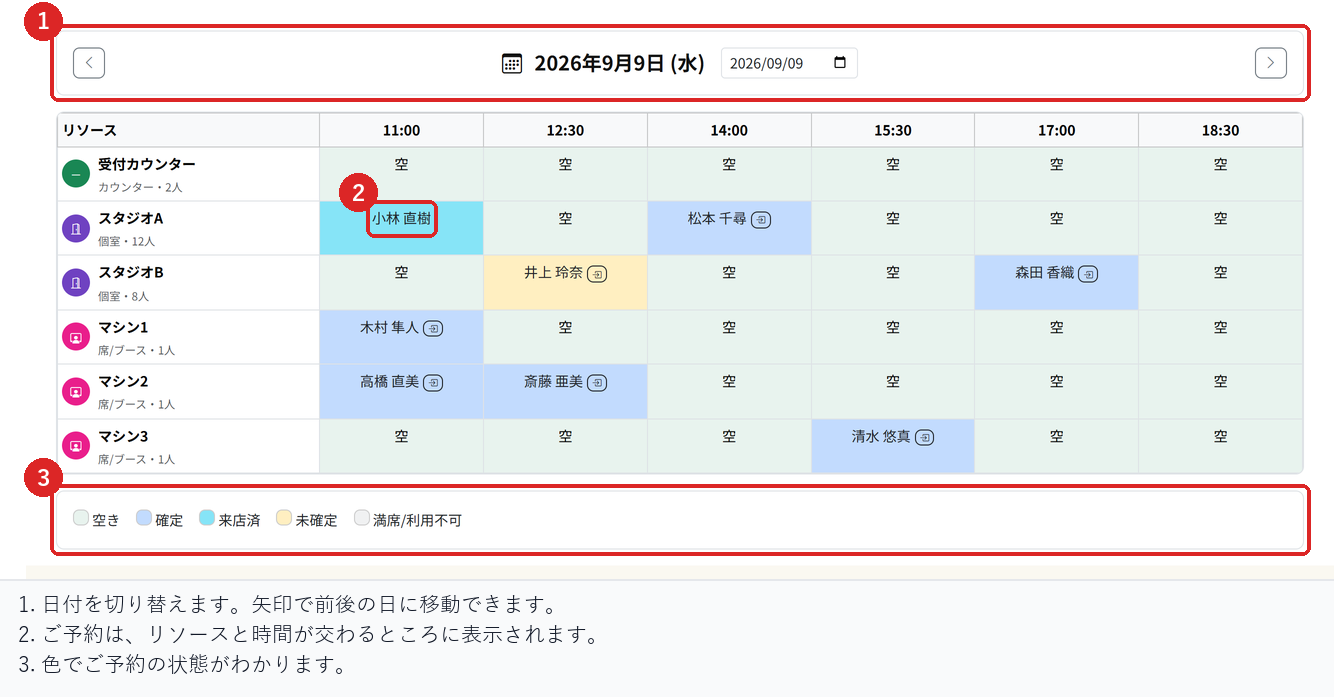
The Timeline shows the whole day at a glance, with seats and staff listed down the side and times across the top. You can see who is where and what is free in one view. Use it to run the day.
Set up your layout first
The Timeline shows one row for each seat, room and staff member registered in your store's layout. If nothing is registered, you will see a prompt to set up your layout.
Opening the screen and changing the date
- In Reservations, choose "Timeline".
- Use the left and right arrows at the top to go to the previous or next day.
- To go to a specific date, pick it from the date field in the middle.
What the colours mean
- Green: Open, and available for bookings.
- Blue: The booking is confirmed.
- Yellow: The booking is pending.
- Light blue: The customer has arrived.
- Grey: Full, or not taking bookings.
The colour legend is also shown at the bottom of the screen.
The current time is outlined
When you are viewing today, the column for the current time slot is outlined and its heading shows "Now". It does not appear on other dates. The example above shows a future date, so the outline is not shown.
Move a booking to another slot
Drag the booking's name and drop it on a free slot to move it there. A confirmation message appears, and when you confirm, the screen updates.
You can only move bookings for customers who have not arrived yet. Bookings marked as arrived cannot be dragged. In that case it is the seat that changes, not the time, so handle it as a seat change.
If the slot you are moving to has already been taken, the booking is not moved and the reason is shown. The original booking stays as it is.
When several bookings share a slot
If there are several bookings for the same seat at the same time, their names are listed one per line. You can open the details from any of them.
Check before you go live
View today and check that the "Now" column points to the correct time slot, and that it does not appear on the previous or next day.
Check that you can drag a booking for a customer who has not arrived to another slot, that bookings marked as arrived cannot be dragged, and that a reason is shown when you try to move a booking to a slot that is already taken.
Related articles
Recording Arrivals / Checking the Reservation Calendar / Automatic Table Assignment and Joining Tables
-
Booking Menus and Service DurationsHow to set a duration for each booking menu item so customers are only offered times when that much time is free in a row. Covers buffer time, choosing which staff can take an item, visibility (Public, Link only, Members only) and who counts as a member.
-
Editing the Booking PageHow to edit the welcome message, cancellation policy and notes shown on your customer-facing booking page, where each one appears, and what to write to cut down on questions.
-
Charging No-Show FeesHow to charge a cancellation fee to customers who do not show up. Covers the card-on-file setting, when the charge is made, and why a charge may not go through.
-
Staff Nomination SettingsHow to let customers choose a staff member before they book. Covers adding a nomination fee, what customers see on the booking page, and why staff must be registered first.
-
Setting Up Deposits and PrepaymentHow to take a deposit or full prepayment at the time of booking. Covers the four payment options, the Stripe connection you need first, what customers see, and what to check before you go live.