Automatic Table Assignment and Joining Tables
ReceiptRoller looks at a booking's party size and time, works out which tables are free, and assigns one automatically. Parties too large for a single table can still be accepted if you register which tables can be pushed together. Use this in restaurants and rental meeting rooms.
Register your layout first
Assignment only uses the tables and rooms registered in your store's layout. Set the number of seats for each one. A table is chosen based on whether the party fits within its seats.
Choose what a slot counts
In the "Hours & slots" tab of Reservation settings, choose what the limit for one slot counts.
- Bookings: Counts the number of bookings taken at the same time, such as 3 bookings per slot. Suits salon-style operations.
- Seats: Counts the number of guests. A booking for 4 uses 4 of your 40 seats, for example.
Restaurants should choose Seats. If you leave it on Bookings, every booking counts as one regardless of party size.
Set up table joining
This lets you accept parties too large for one table by pushing several tables together.
- Open the "Advanced" tab in Reservation settings.
- Turn on "Push tables together for large parties".
- Choose "Add a combination" and register the tables that can be joined.
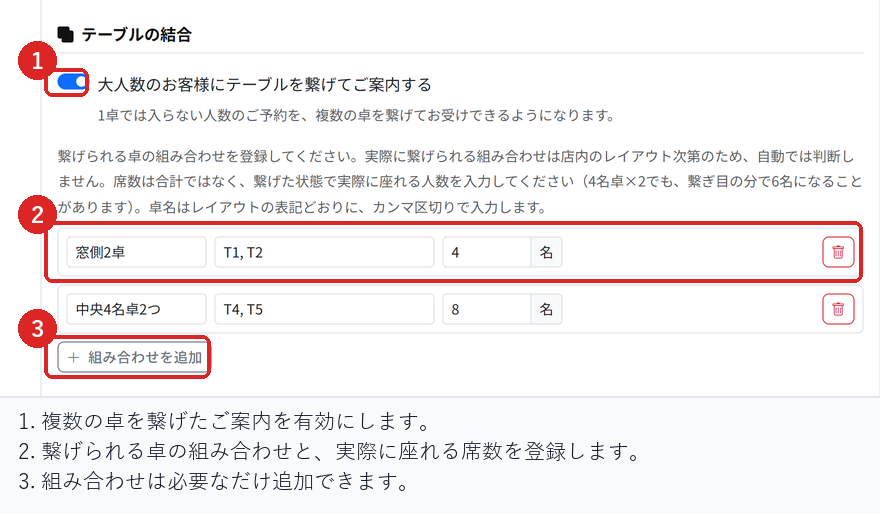
Which tables can actually be joined depends on your floor layout, so this is never decided automatically. Register only the combinations that work, such as the two window tables. For seats, enter the number of people who can really sit at the joined tables, not the total.
What happens when customers book
When a customer chooses a party size, only times with a table that fits that party are offered. If one table is enough, the party is assigned to it; if not, it is assigned to a registered combination.
If the party fits nowhere, that time is not offered.
Checks before you start
Register a 2-seat table and a 4-seat table, and check that a booking for 6 cannot be taken at a single table but can be taken once you register a combination.
If you set slots to count Seats, check on the Timeline that a booking for 4 reduces the remaining count by 4 seats.
Related articles
Intake Pace and Maximum Concurrent Bookings / Using the Timeline / Creating Reservations and Acceptance Settings
-
Booking Menus and Service DurationsHow to set a duration for each booking menu item so customers are only offered times when that much time is free in a row. Covers buffer time, choosing which staff can take an item, visibility (Public, Link only, Members only) and who counts as a member.
-
Editing the Booking PageHow to edit the welcome message, cancellation policy and notes shown on your customer-facing booking page, where each one appears, and what to write to cut down on questions.
-
Charging No-Show FeesHow to charge a cancellation fee to customers who do not show up. Covers the card-on-file setting, when the charge is made, and why a charge may not go through.
-
Staff Nomination SettingsHow to let customers choose a staff member before they book. Covers adding a nomination fee, what customers see on the booking page, and why staff must be registered first.
-
Setting Up Deposits and PrepaymentHow to take a deposit or full prepayment at the time of booking. Covers the four payment options, the Stripe connection you need first, what customers see, and what to check before you go live.