Recording Arrivals
You can record that a customer has arrived. Once you do, you can tell on screen which customers have not arrived yet and which are already in the store. It helps you keep track of which groups are still on their way during busy times.
A booking can have six statuses
- Pending: The booking has been received but not yet confirmed.
- Confirmed: You are expecting the customer.
- Arrived: The customer is in the store.
- Completed: You have finished serving the customer.
- Cancelled: The booking was cancelled.
- No-show: The customer did not come and did not let you know.
Arrived sits between Confirmed and Completed. The seat stays held, so the booking still counts toward capacity and the limit on simultaneous bookings.
Record an arrival from the Timeline
- In Reservations, choose "Timeline".
- Choose "Arrived" next to the booking of the customer who has arrived.
- You return to the Timeline for the same date, and the booking turns light blue.
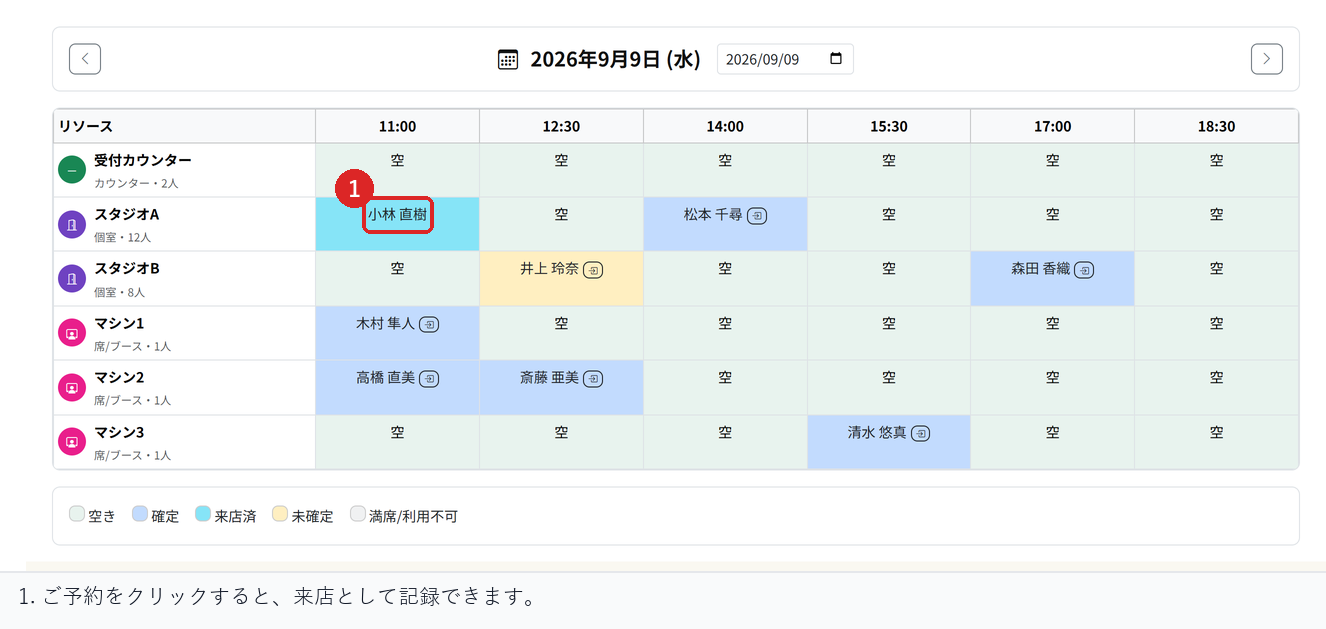
You return to the Timeline so you can record several groups in a row during busy times, without opening the details screen for each one.
Record an arrival from the reservation details
- In Reservations, open "Reservation list" and choose the booking.
- Choose "Mark arrived".
You stay on the reservation details after this. Use it when you are recording just one booking, or when you also want to check the notes.
If the button does not appear
"Arrived" only appears on bookings for customers who have not arrived yet. It does not appear on bookings already marked as arrived, or on completed, cancelled or no-show bookings.
It also does not appear on the Timeline for past dates.
After a customer has arrived
When you have finished serving the customer, choose "Mark completed" in the reservation details. Leaving the booking as Arrived causes no problems, but marking it Completed means it is counted in your analytics.
Bookings marked as arrived cannot be dragged on the Timeline. The customer is already in the store, so what changes is the seat, not the time.
Check before you go live
After choosing "Arrived" on the Timeline, check that you return to the Timeline for the same date and that the booking's colour changes.
Also check that "Arrived" no longer appears on that booking and that it can no longer be dragged.
Related articles
Using the Timeline / Reservation Cancellations and Changes / Charging No-Show Fees
-
Booking Menus and Service DurationsHow to set a duration for each booking menu item so customers are only offered times when that much time is free in a row. Covers buffer time, choosing which staff can take an item, visibility (Public, Link only, Members only) and who counts as a member.
-
Editing the Booking PageHow to edit the welcome message, cancellation policy and notes shown on your customer-facing booking page, where each one appears, and what to write to cut down on questions.
-
Charging No-Show FeesHow to charge a cancellation fee to customers who do not show up. Covers the card-on-file setting, when the charge is made, and why a charge may not go through.
-
Staff Nomination SettingsHow to let customers choose a staff member before they book. Covers adding a nomination fee, what customers see on the booking page, and why staff must be registered first.
-
Setting Up Deposits and PrepaymentHow to take a deposit or full prepayment at the time of booking. Covers the four payment options, the Stripe connection you need first, what customers see, and what to check before you go live.