Reservation Notifications on LINE
You can send booking confirmations, changes and reminders over LINE. Customers who book through LINE can receive these messages even if they have not registered an email address.
How to set it up
- In Reservations, open "Setup" and choose "Reservation settings".
- Open the "Notifications" tab.
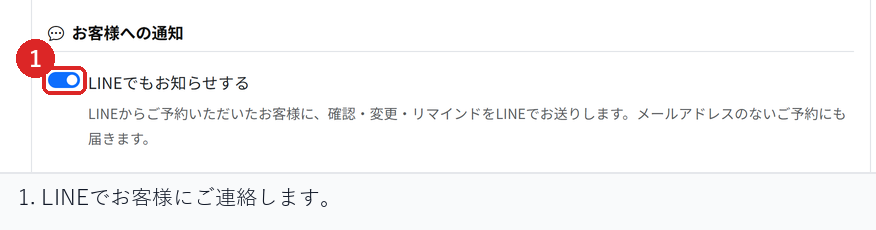
- Under "Customer notifications", turn on "Also notify over LINE". It is on by default.
- Choose "Save" at the bottom of the screen.
When messages are delivered
Messages are sent over LINE only when the booking carries the customer's LINE user details. In practice, that means bookings made from the LINE mini app or from the booking page opened through LINE.
Bookings entered by staff over the phone or in person, and bookings made from the regular web page, do not receive LINE messages. Turning this setting on never sends anything to customers who do not use LINE.
Messages reach bookings without an email address
Customers booking through LINE sometimes do not enter an email address. Previously nothing could be sent in that case; now they receive messages over LINE.
If a booking has neither an email address nor LINE user details, no messages can be sent. For phone bookings, please confirm the details with the customer directly.
What is sent
The same content as the email is sent. The wording you edit in Email templates is used as it is, so email and LINE never say different things.
This covers booking confirmations, cancellations, time changes, the day-before reminder, waitlist offers, thank-you messages after a visit, messages to customers you have not seen for a while, and multi-visit pass notices.
When messages are not sent
If the LINE connection has not been set up for your business account, nothing is sent over LINE and only email is sent. A missing setup is not shown as an error, so check this first if messages are not arriving.
Checks before you start
Make a test booking through LINE and check that the confirmation arrives on LINE. Also check that it arrives even when no email address is entered.
Check, too, that a booking from the regular web page does not receive a LINE message and receives email only.
Related articles
Reservation Notifications and Customer Reminders / Editing Email Templates / Calendar Files Attached to Booking Messages
-
Booking Menus and Service DurationsHow to set a duration for each booking menu item so customers are only offered times when that much time is free in a row. Covers buffer time, choosing which staff can take an item, visibility (Public, Link only, Members only) and who counts as a member.
-
Editing the Booking PageHow to edit the welcome message, cancellation policy and notes shown on your customer-facing booking page, where each one appears, and what to write to cut down on questions.
-
Charging No-Show FeesHow to charge a cancellation fee to customers who do not show up. Covers the card-on-file setting, when the charge is made, and why a charge may not go through.
-
Staff Nomination SettingsHow to let customers choose a staff member before they book. Covers adding a nomination fee, what customers see on the booking page, and why staff must be registered first.
-
Setting Up Deposits and PrepaymentHow to take a deposit or full prepayment at the time of booking. Covers the four payment options, the Stripe connection you need first, what customers see, and what to check before you go live.