Calendar Files Attached to Booking Messages
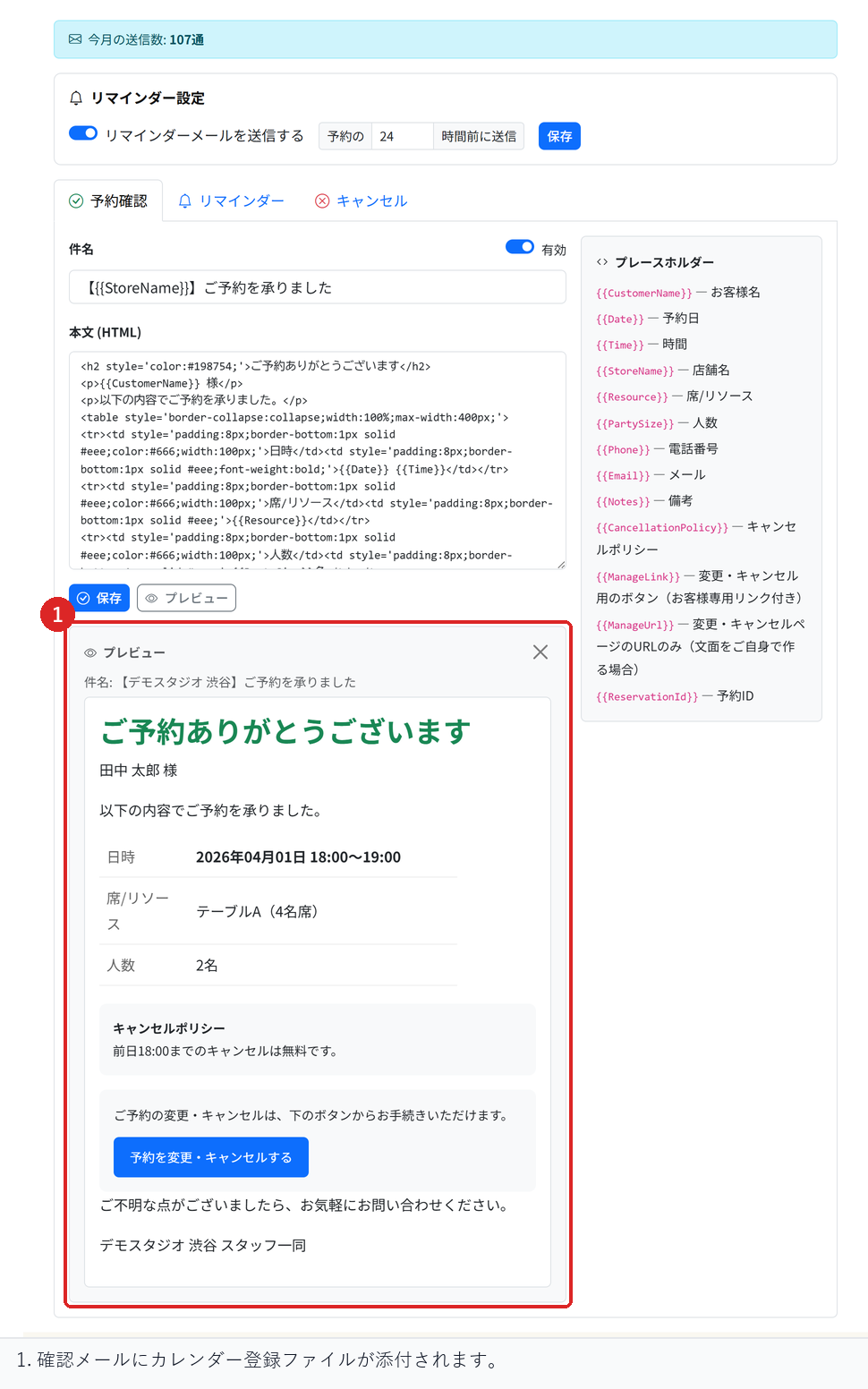
A calendar file is attached to the booking confirmation message. Customers can add the booking to the calendar on their own device, which helps reduce forgotten appointments. No setup is needed.
Which messages include it
The file is attached only to the three messages that concern the appointment itself.
- Booking confirmation
- Time change
- Cancellation
It is not attached to messages for customers you have not seen for a while or to multi-visit pass notices, because those are not appointments.
What happens on changes and cancellations
The file is created so that it is recognised as the same booking. When you change the time, the event in the customer's calendar is replaced with the new time. Two events will not appear side by side.
When you cancel, the event disappears from the customer's calendar. A cancelled booking does not stay on their calendar.
Stays and rentals
Stay and rental bookings span days rather than set times. These are added as all-day events, so they will not appear as events starting at midnight.
Customers can also add it from the confirmation screen
The booking confirmation screen shows "Add to calendar". Customers can use it to add the booking there and then, without opening the email.
Only customers who have the booking management link can do this. Because the file contains the customer's name and the place they are visiting, it cannot be opened with the booking number alone.
Checks before you start
Receive a confirmation for a test booking and check that you can add it to your calendar from the attached file. We recommend checking on a smartphone.
Then change the time and check that the event in the calendar is replaced, and cancel it and check that the event disappears.
Related articles
Reservation Notifications on LINE / Reservation Notifications and Customer Reminders / Reservation Cancellations and Changes
-
Booking Menus and Service DurationsHow to set a duration for each booking menu item so customers are only offered times when that much time is free in a row. Covers buffer time, choosing which staff can take an item, visibility (Public, Link only, Members only) and who counts as a member.
-
Editing the Booking PageHow to edit the welcome message, cancellation policy and notes shown on your customer-facing booking page, where each one appears, and what to write to cut down on questions.
-
Charging No-Show FeesHow to charge a cancellation fee to customers who do not show up. Covers the card-on-file setting, when the charge is made, and why a charge may not go through.
-
Staff Nomination SettingsHow to let customers choose a staff member before they book. Covers adding a nomination fee, what customers see on the booking page, and why staff must be registered first.
-
Setting Up Deposits and PrepaymentHow to take a deposit or full prepayment at the time of booking. Covers the four payment options, the Stripe connection you need first, what customers see, and what to check before you go live.