Running a Waitlist
Even when a time slot is full, customers can join a waitlist. When a place frees up, it is offered to one person at a time, in the order they joined. Instead of simply telling customers you are full, this turns the moment into another chance to book. The waitlist is off by default.
How to set it up
- In Reservations, open "Setup" and select "Reservation settings".
- Open the "Advanced" tab.
- Turn on "Take waitlist entries for full slots".
- Enter "How long the place is held" in minutes. If the person offered the place does not respond within this time, it passes to the next person.
- Select "Save" at the bottom of the screen.
What the customer sees
On the public booking page, full time slots show "Full — join waitlist". Selecting it opens a sign-up screen where the customer enters their name and phone number.
When a place frees up, only the first person in line is notified. It is not sent to everyone at once on a first-come, first-served basis. The booking is confirmed when the customer completes it from the link in the offer.
When the hold time runs out
If the customer does not complete the booking within the set time after the offer, the place passes to the next person automatically. The slot is not left empty while waiting indefinitely for the first person.
No offers are sent late at night
Offers are not sent between 10 pm and 8 am. If a place frees up during these hours, that customer waits for the next opening.
Checking who is waiting
- In Reservations, select "Waitlist".
- For each time slot, the number of parties waiting and the total number of people are shown.
- You can see each person's position, contact details, and whether they currently have an offer.
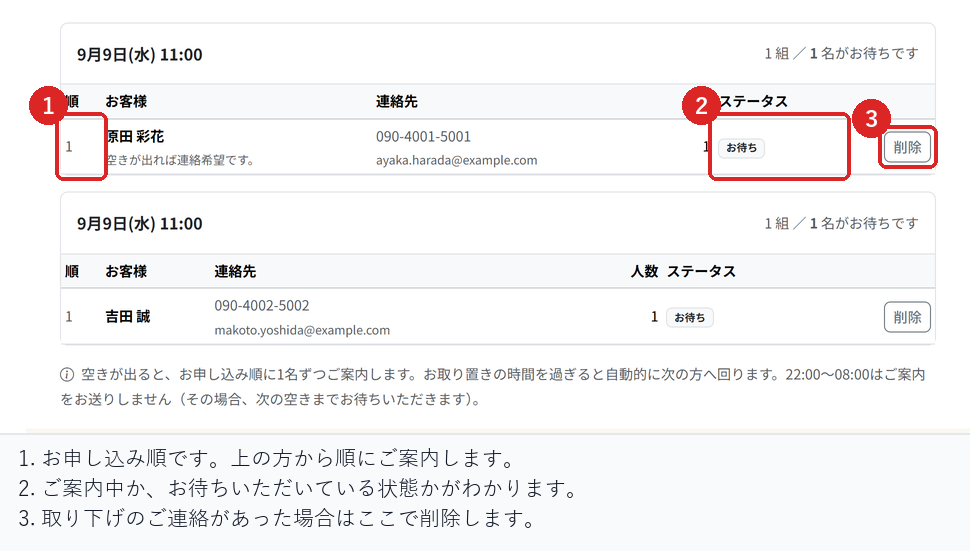
The total number of people is shown as well as the number of parties because 3 parties adding up to 12 people may be a reason to prepare a separate table.
To take a customer off the list, select "Remove".
No offers after a no-show
A slot freed up by a cancellation is offered to the waitlist, but a slot freed up by a no-show is not. It frees up right before the booking time, so an offer would not reach anyone in time.
Checks before you go live
Create a full slot and confirm that the waitlist option appears on the public booking page. After signing up, also confirm that the entry appears on the "Waitlist" screen.
Then cancel one booking in that slot, and confirm that the first person receives an offer and the second person does not.
Related articles
Intake Pace and Maximum Concurrent Bookings / Reservation Cancellations and Changes / Reservation Notifications on LINE
-
Booking Menus and Service DurationsHow to set a duration for each booking menu item so customers are only offered times when that much time is free in a row. Covers buffer time, choosing which staff can take an item, visibility (Public, Link only, Members only) and who counts as a member.
-
Editing the Booking PageHow to edit the welcome message, cancellation policy and notes shown on your customer-facing booking page, where each one appears, and what to write to cut down on questions.
-
Charging No-Show FeesHow to charge a cancellation fee to customers who do not show up. Covers the card-on-file setting, when the charge is made, and why a charge may not go through.
-
Staff Nomination SettingsHow to let customers choose a staff member before they book. Covers adding a nomination fee, what customers see on the booking page, and why staff must be registered first.
-
Setting Up Deposits and PrepaymentHow to take a deposit or full prepayment at the time of booking. Covers the four payment options, the Stripe connection you need first, what customers see, and what to check before you go live.