Scheduled Publishing and Multi-Channel Posting
Posts can be scheduled for publishing at a specified date and time in advance. You can also reduce the effort of running your SNS accounts by selecting multiple destination channels for a single post.
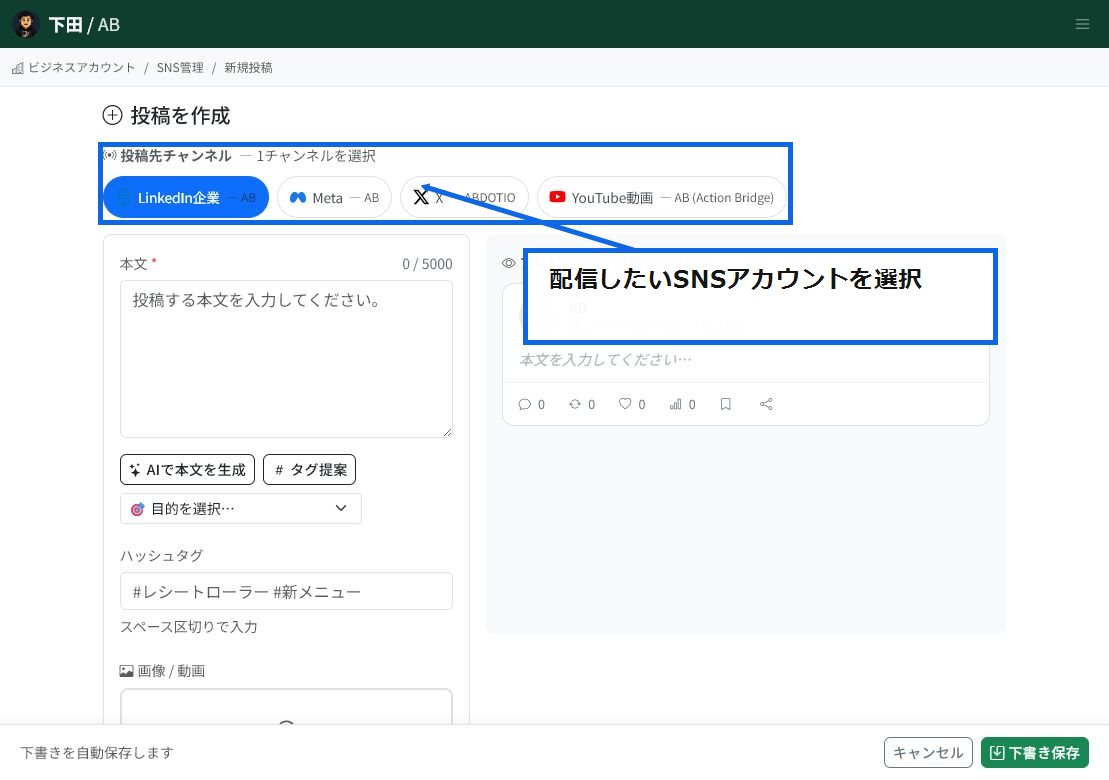
Select the destination channel
At the top of the post creation screen, select the SNS account you want to publish to.
- Connected accounts such as LinkedIn, Meta, X, and YouTube are displayed.
- The preview display switches depending on the selected channel.
- Confirm the destination is correct before entering the post content.
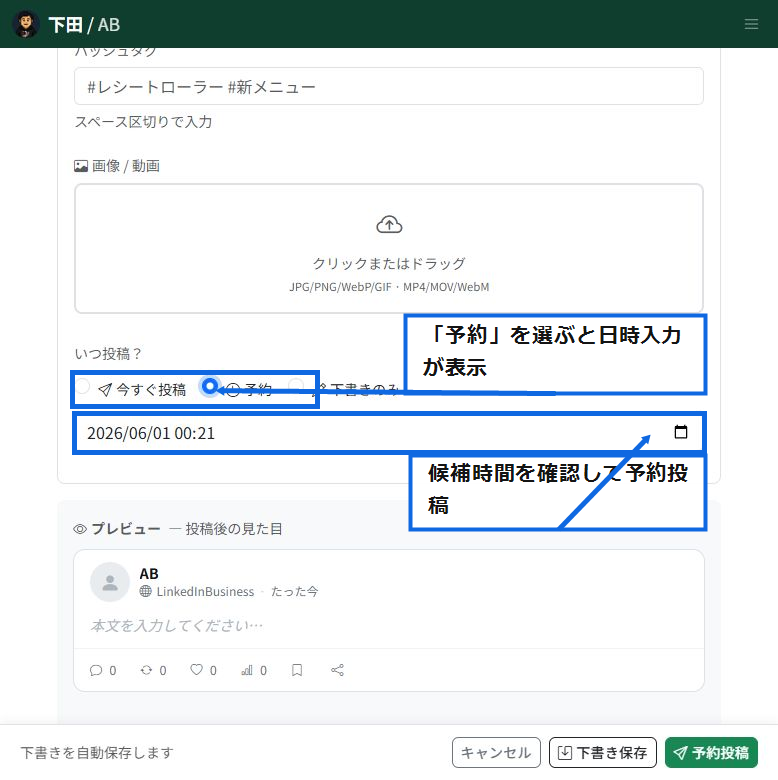
Scheduled publishing
Selecting "Schedule" on the post creation screen lets you specify the publishing date and time.
- The post is automatically published once the specified date and time arrives.
- Scheduled posts can be checked in the post list and calendar.
- You can change the content or date and time before publishing.
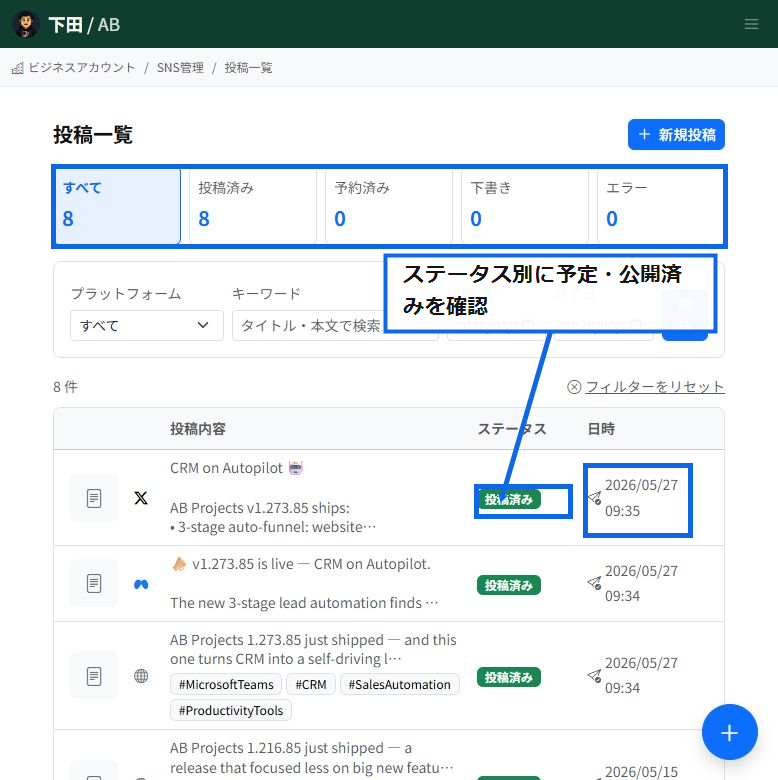
Checking scheduled posts
In the post list, you can check published, scheduled, draft, and error posts by status.
- Selecting "Scheduled" shows only the posts that will be published from now on.
- You can view the publishing date and time, destination, and a summary of the body text in the list.
- If there is an error, you can check it from the status.
Posting to multiple channels at once
If you publish to multiple channels, you can select several destinations together and publish the same content to multiple SNS platforms at once. Each platform's character limit and media restrictions are checked before posting.
- You can publish the same announcement to multiple channels at once.
- You can check the post content against the limits for each channel.
- The publishing result is reflected in the status for each channel.
Handling partial failures
When publishing to multiple channels at the same time, some channels may fail while others succeed. If this happens, check the error details for the failed channel, revise the content as needed, and republish.
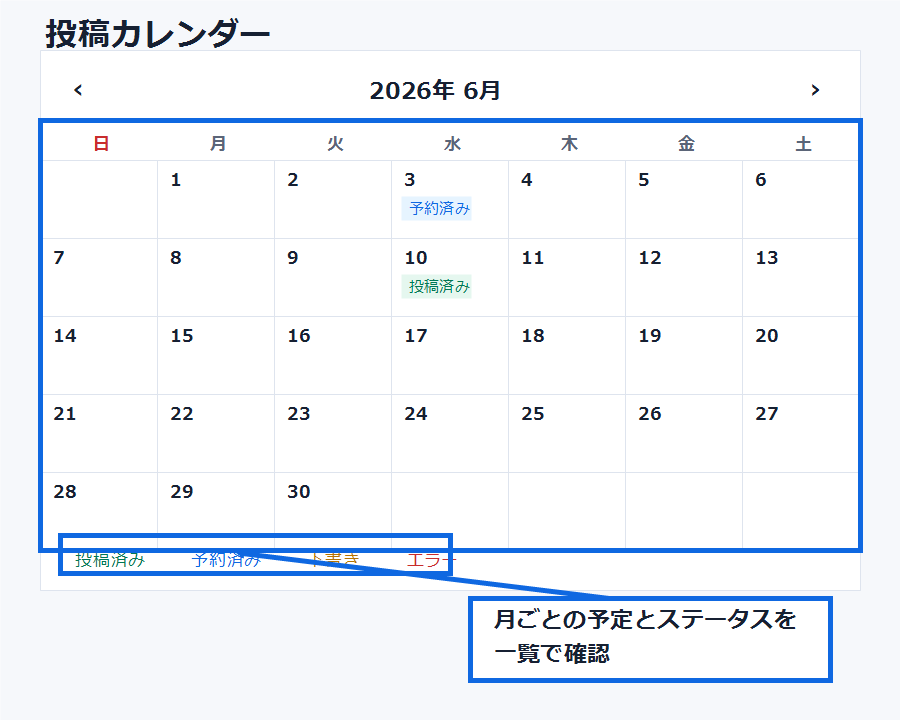
Checking the post calendar
In "SNS Management > Calendar," you can check scheduled and published posts by month or week.
- You can visually check the publishing dates of scheduled posts.
- Published and scheduled posts are distinguished by status.
- You can check whether publishing dates are too concentrated.
Recommended posting times
Based on past analytics data, AI suggests time slots that are likely to generate higher engagement. You can use this as a reference when deciding when to schedule a post.
Related articles
-
SNS Management OverviewAn overview of ReceiptRoller's SNS Management feature. Manage post management across 10 supported channels, the Creative Library, AI support, a unified inbox, Google Business Profile integration, and an analytics dashboard all in one place.
-
Connecting Instagram BusinessExplains how to connect an Instagram Business account to ReceiptRoller, including the required Facebook Page link and prerequisites.
-
Connecting a LINE Official AccountExplains how to connect a LINE Official Account to ReceiptRoller using a Messaging API channel's Channel ID and Channel Secret.
-
Creating and Publishing PostsHow to create SNS posts. Combine body text, images, videos, and hashtags, select the target accounts, and save as a draft or publish immediately. Supports images up to 5MB and videos up to 2GB, with chunked 8MB video uploads, progress display, cancellation, and automatic retry.
-
Connecting SNS AccountsA comprehensive guide to connecting SNS channels (X, Meta, Instagram, LINE, TikTok, YouTube, Google Business Profile, LinkedIn, Pinterest) with ReceiptRoller. See the individual articles for platform-specific steps.