Post Calendar and Optimal Posting Times
Social media results depend not just on "what you post" but heavily on "when you post." The post calendar lets you visually check your scheduled posts, while AI insights help you identify the days and time bands with the highest engagement.
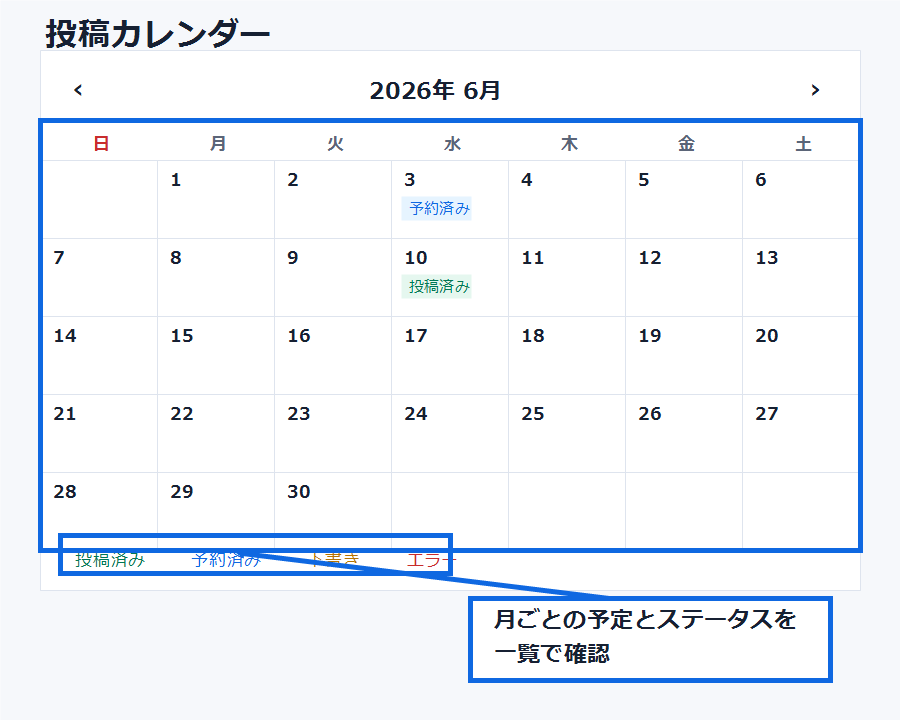
Calendar View
The post calendar lets you view your monthly schedule and status at a glance.
- Monthly view: See a bird's-eye view of the month's scheduled posts.
- Weekly view: Check the detailed schedule for a single week.
- Color-coding by channel: Makes it easy to distinguish destinations like Meta, Instagram, and X.
- Status display: Distinguishes between scheduled, published, and failed posts.
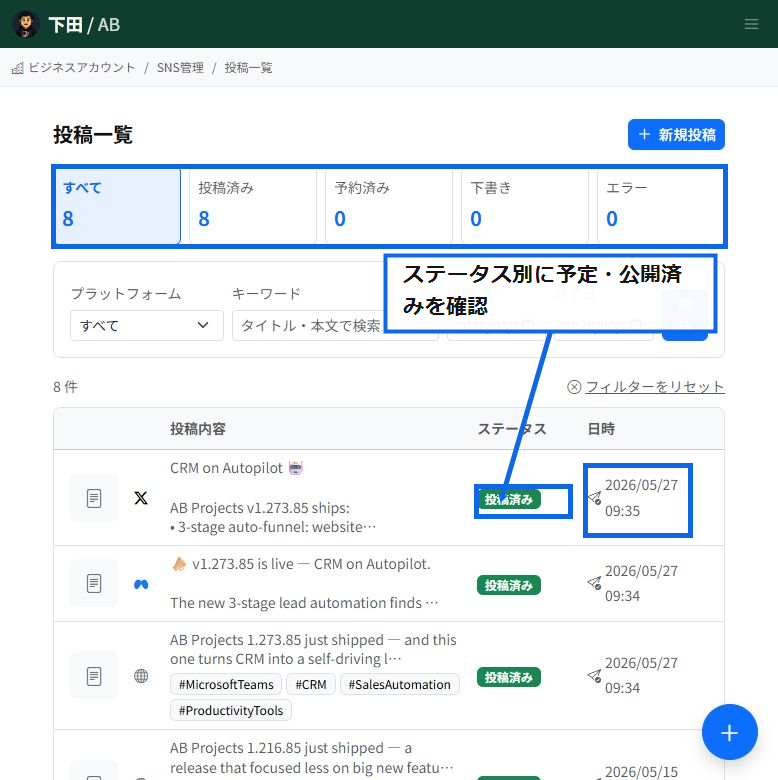
Checking Post Status
The post list lets you check published, scheduled, drafted, and failed posts by status.
- To view only scheduled posts, select "Scheduled" at the top.
- You can see the status and delivery date/time for each post in the same list.
- You can narrow results by platform, keyword, or date range.
Operations You Can Perform on the Calendar
- Change the delivery time by dragging.
- Click a post to view details or edit it.
- Create a new post from an open slot.
- Export your schedule by month or week.
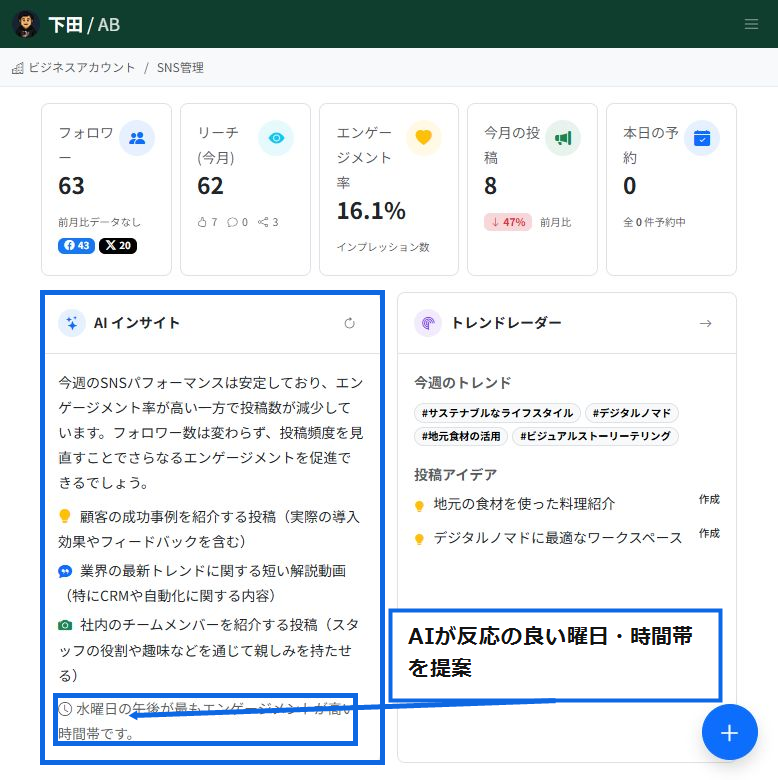
Optimal Posting Time Recommendations
AI insights use your past engagement data to identify the days and time bands with the highest response.
- Checking this before scheduling a post makes it easier to decide on a delivery date/time.
- You can also check recommendations alongside post frequency and content plans.
- Recommendations change based on your actual posting data.
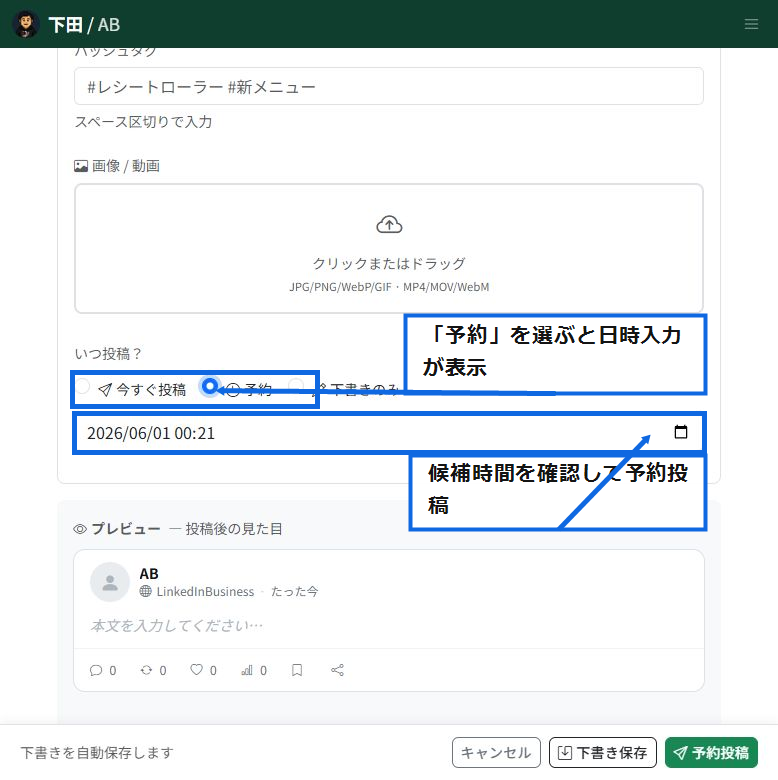
Specifying the Date/Time for a Scheduled Post
Selecting "Schedule" in the post creation screen displays the date/time input field.
- Specify the date/time referencing the time band identified by AI insights.
- Use the preview to check how the post will look after publishing.
- If there are no issues with the content, select "Schedule Post."
Basis for the Recommendations
- Time bands when your followers are most active
- Engagement rates of past posts
- Benchmarks by industry and region
- Differentiation from competitors' posting times
Preventing Content Skew
You can check whether posts of the same category are running consecutively on the calendar. This helps you maintain balance in your post themes, avoiding runs of only announcements or only product introductions.
Integration with AI Weekly Plans
You can pull the weekly plan suggested by the Trend Radar directly into your calendar. Convert "next week's posting proposals" into scheduled posts, letting you organize your posting plan all in one place.
Related Articles
-
SNS Management OverviewAn overview of ReceiptRoller's SNS Management feature. Manage post management across 10 supported channels, the Creative Library, AI support, a unified inbox, Google Business Profile integration, and an analytics dashboard all in one place.
-
Connecting Instagram BusinessExplains how to connect an Instagram Business account to ReceiptRoller, including the required Facebook Page link and prerequisites.
-
Connecting a LINE Official AccountExplains how to connect a LINE Official Account to ReceiptRoller using a Messaging API channel's Channel ID and Channel Secret.
-
Creating and Publishing PostsHow to create SNS posts. Combine body text, images, videos, and hashtags, select the target accounts, and save as a draft or publish immediately. Supports images up to 5MB and videos up to 2GB, with chunked 8MB video uploads, progress display, cancellation, and automatic retry.
-
Connecting SNS AccountsA comprehensive guide to connecting SNS channels (X, Meta, Instagram, LINE, TikTok, YouTube, Google Business Profile, LinkedIn, Pinterest) with ReceiptRoller. See the individual articles for platform-specific steps.