Updating Product Information
You can update registered product information at any time from product management. To revise the product name, SKU, images, price, tax rate, status, variations, or store-specific pricing, open the target product and edit it. If you have many products, you can also update them in bulk using CSV.
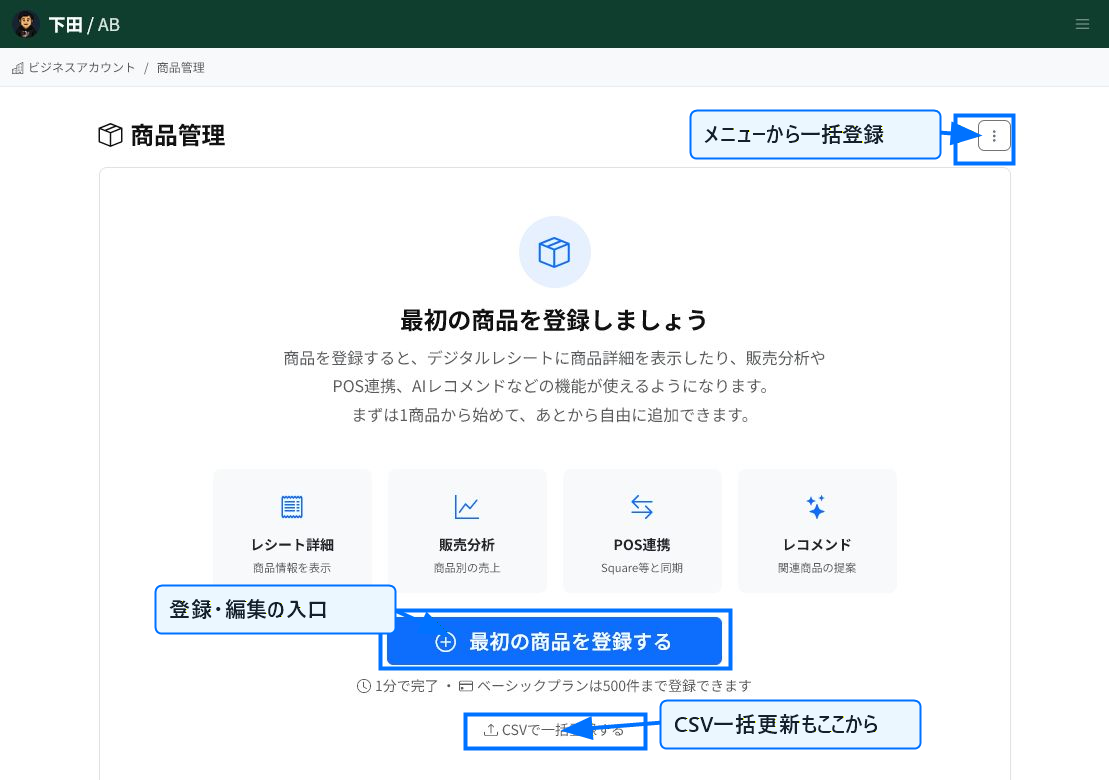
Start Editing from Product Management
Open editing from the product list or the product detail screen. If you don't have any products yet, you can begin registration from "Register your first product." When handling multiple products together, open the CSV screen from the menu or from "Bulk register via CSV" within the screen.
When editing an existing product, you update its content using the same input fields as at registration.
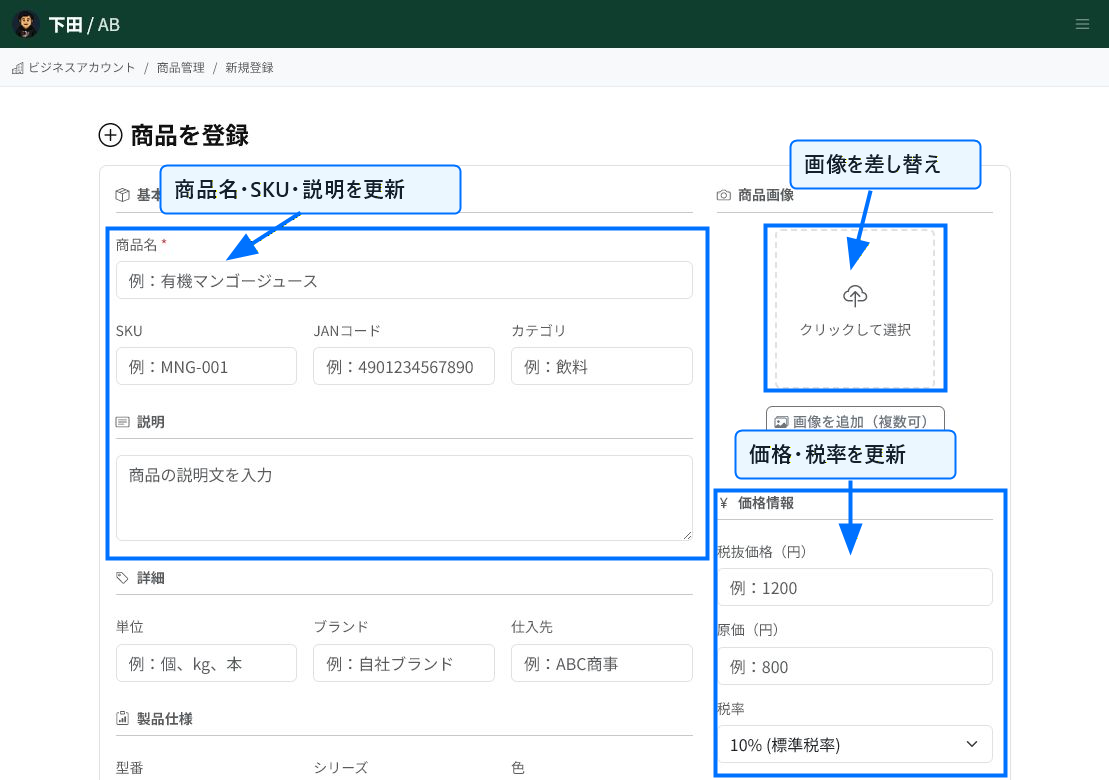
Update Basic Information and Pricing
Revise the product name, SKU, JAN code, category, description, and other fields as needed. Replacing the image also updates the appearance used in product details, EC listings, and elsewhere.
In the pricing section, you can update the tax-excluded price, cost, and tax rate. When changing the price, verify the tax-inclusive price and tax rate are as expected before saving.
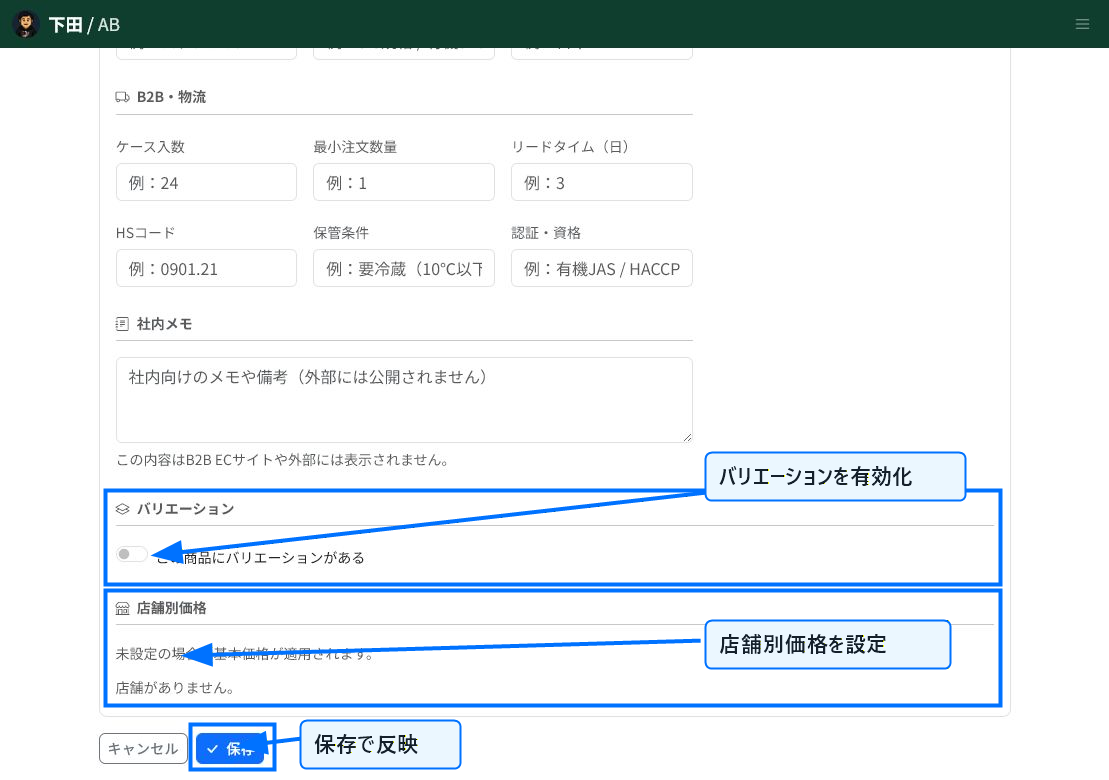
Adjust Variations and Store-Specific Pricing
If the product has variations such as size or color, enable "This product has variations" and add or update information for each variation.
To set different prices per store, configure store-specific pricing. Stores without a configured price use the product's base price. Changes take effect once saved.
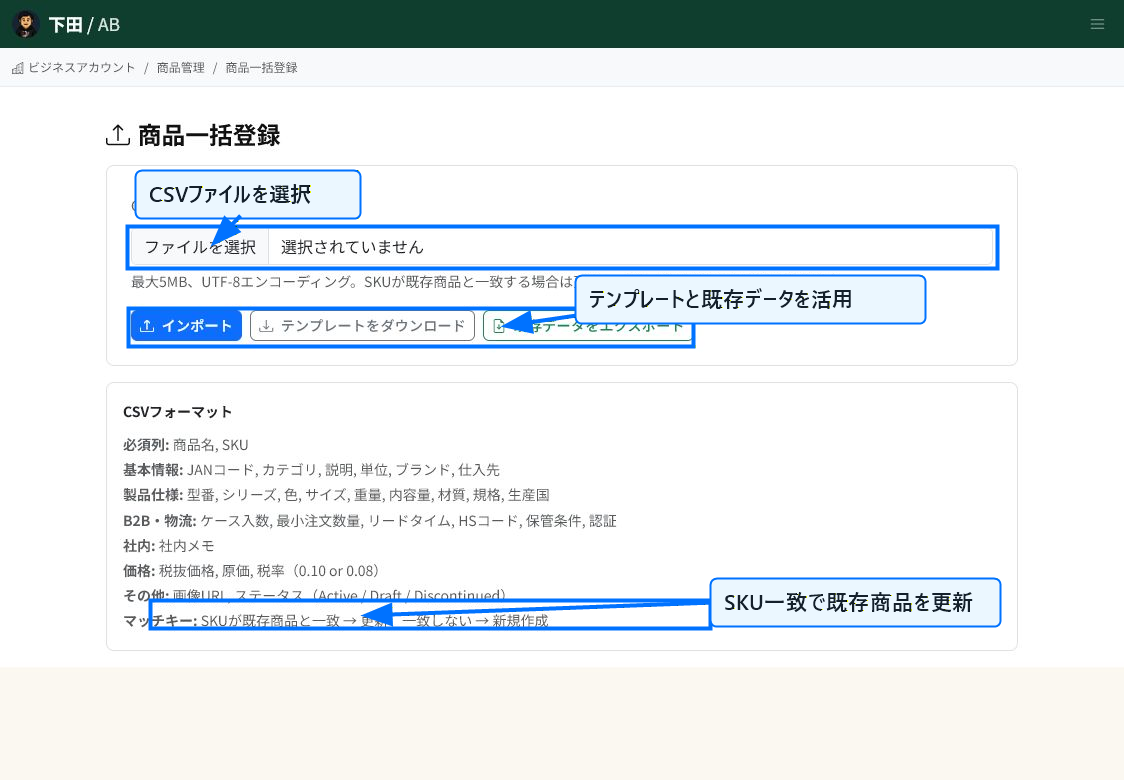
Update in Bulk via CSV
To update many products at once, upload a CSV file from the bulk product registration screen. Rows whose SKU matches an existing product are updated, while rows that don't match are created as new products.
Download the template to check the required columns. Exporting existing data before editing, when needed, helps reduce input mistakes.
Notes When Updating
Changing the status can affect where a product is displayed or whether it's available for sale. Discontinued products are excluded from the standard list and search results, but their sales history is retained.
Deleting a product from the product detail screen is a logical deletion. Deleted products no longer appear in the normal list, but the underlying data is kept to preserve consistency with historical data.
Related Articles
Registering Product Information / Bulk Upload of Product Data
-
Bulk Setting Cost Prices (CSV)Steps for updating cost prices for multiple products at once using a CSV file. Covers the template, the CostPrice column, ProductId/Name matching, preview, and warning checks, with screenshots.
-
What is Product Information Management (PIM)?An overview of ReceiptRoller's PIM (Product Information Management) feature. Explains centralized product data management, variations, search, and Square integration.
-
Registering Product InformationSteps for registering a new product. Explains basic information, pricing, specifications, B2B/logistics information, variations, and store-specific pricing, with screenshots.
-
Product Category ManagementHow to set up product categories. Explains the category field on the product form, hierarchical notation (Food | Beverages | Tea), bulk CSV updates, and naming conventions, with screenshots.
-
Product Performance AnalysisHow to use product-level sales analysis. Explains date-range filtering, category/search/sorting, AI advice, ABC analysis, gross margin, and PIM integration, with screenshots.