Bulk Upload of Product Data
If you have a large amount of product data, you can register and update it all at once using a CSV file. Rows whose SKU matches an existing product are updated, while rows that don't match are created as new products.
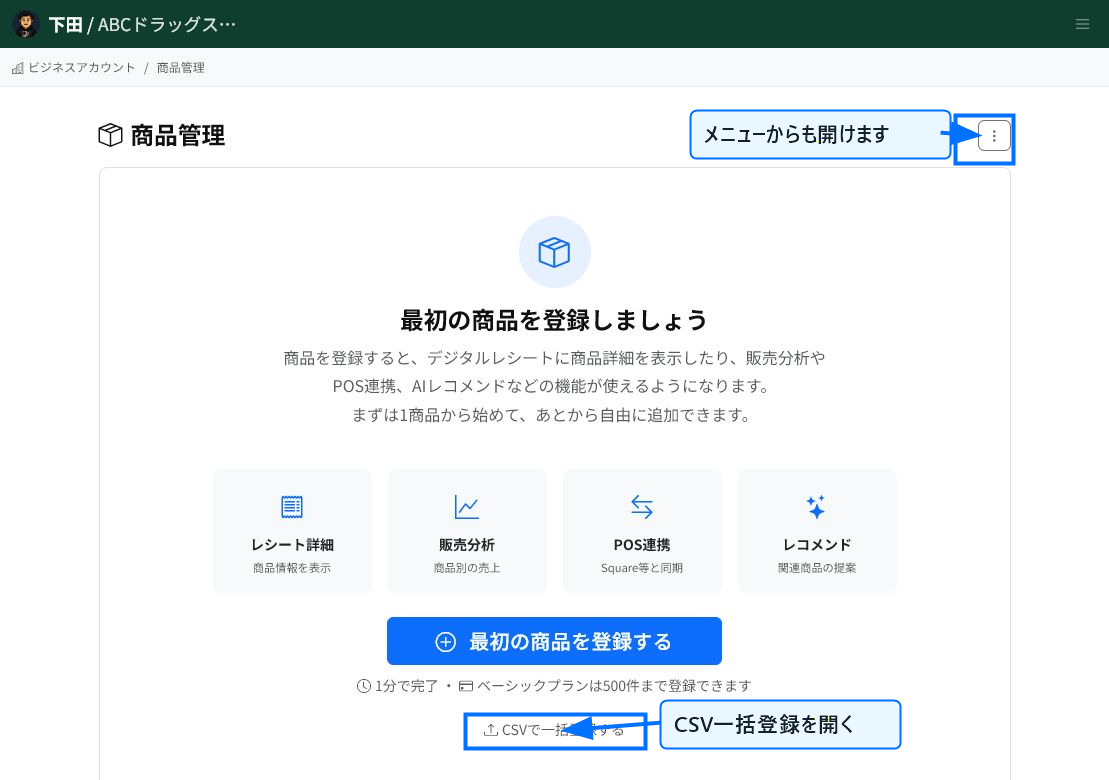
Open Bulk CSV Registration from Product Management
Open the bulk product registration screen from "Bulk register via CSV" on the product management screen, or from the menu. If you already have registered products, you can also perform a CSV update from the same screen.
This is convenient when you want to add or update many products at once, rather than registering them one at a time.
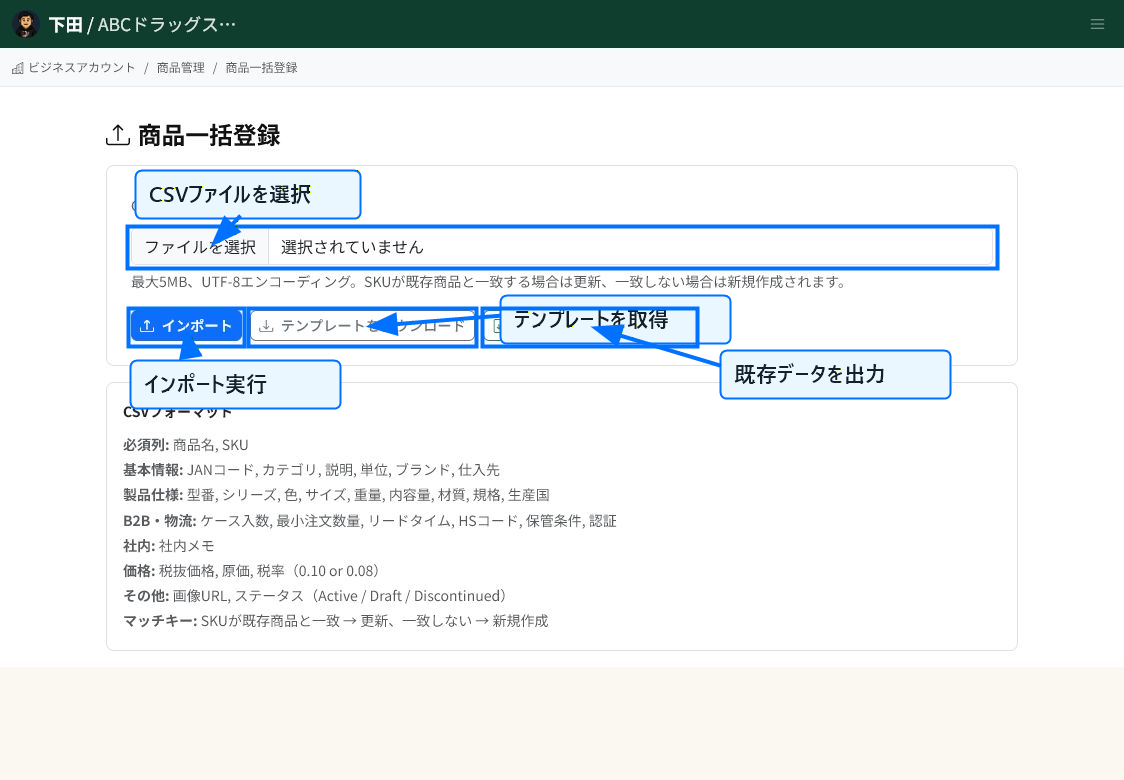
Prepare Your CSV Using the Template
If this is your first time, "download the template" to check the required column names and input format. If you're updating already-registered products, it's safer to "export existing data" and edit that CSV.
Once you've selected your CSV file, run "Import." Save the file as UTF-8.
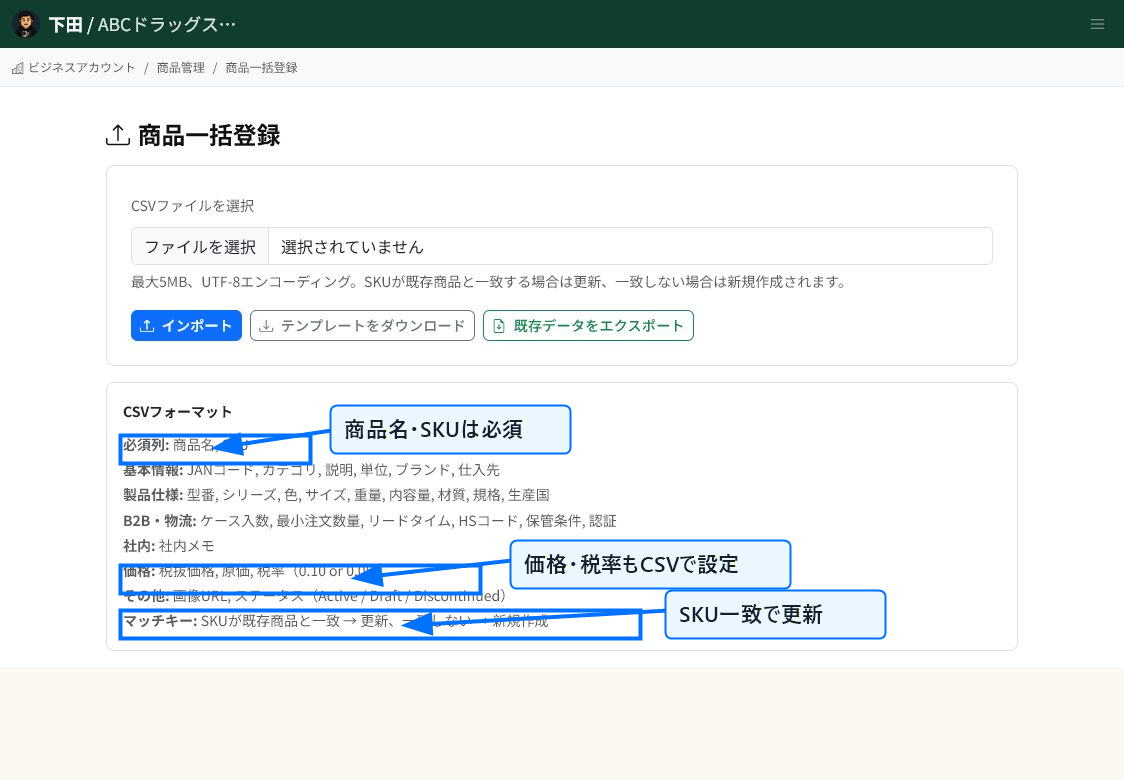
Check Required Columns and the Update Key
Product name and SKU are required in the CSV. SKU is used as the update key to identify existing products. If a product with the same SKU exists, it is updated; otherwise, a new product is created.
You can also set JAN code, category, description, specifications, B2B/logistics information, internal memo, price, tax rate, image URL, and status via CSV.
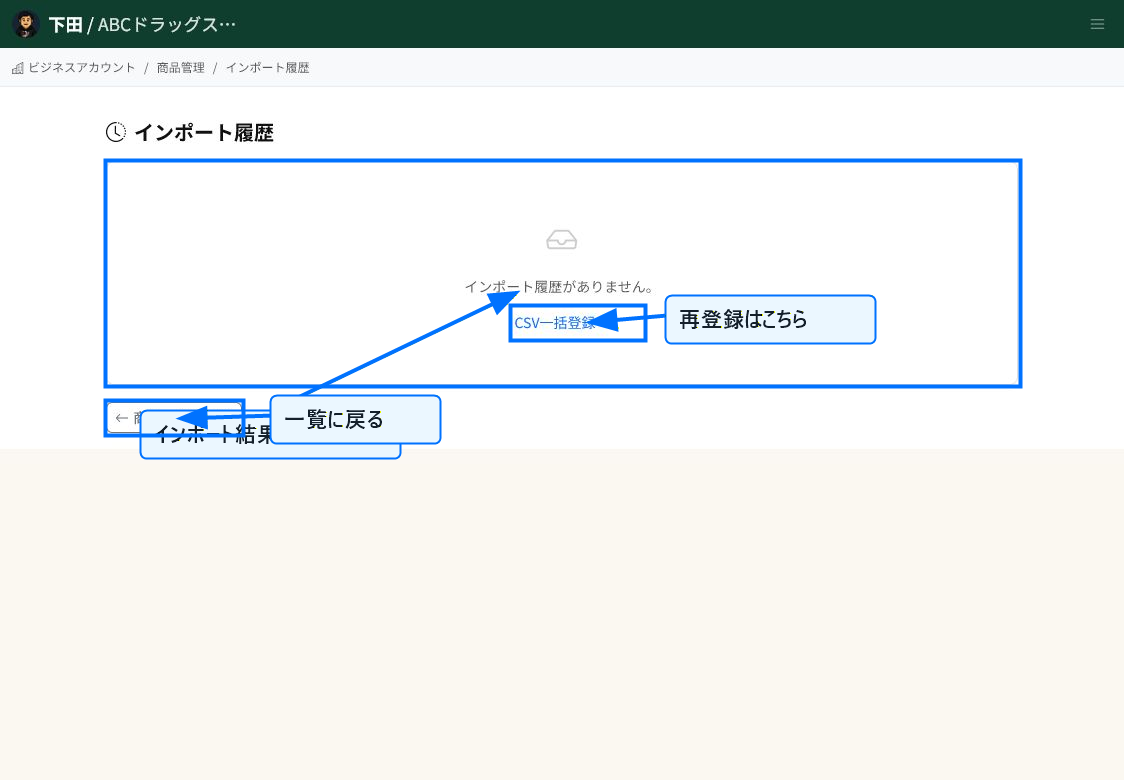
Check the Import Results
After importing, you can check the processing results on the history screen. If there are errors, correct the content and upload again from the bulk product registration screen.
Products registered are reflected in the product list and search. Verify important items such as price and tax rate by opening a representative product.
Tips for Creating Your CSV
When updating existing products, don't change the SKU. Changing the SKU may cause the row to be created as a separate, new product.
When specifying an image URL, enter a URL that's accessible externally. For status, specify one of Active, Draft, or Discontinued.
Related Articles
Registering Product Information / Updating Product Information
-
Bulk Setting Cost Prices (CSV)Steps for updating cost prices for multiple products at once using a CSV file. Covers the template, the CostPrice column, ProductId/Name matching, preview, and warning checks, with screenshots.
-
What is Product Information Management (PIM)?An overview of ReceiptRoller's PIM (Product Information Management) feature. Explains centralized product data management, variations, search, and Square integration.
-
Updating Product InformationHow to edit and update registered products. Explains basic information, images, pricing, variations, store-specific pricing, and bulk CSV updates, with screenshots.
-
Registering Product InformationSteps for registering a new product. Explains basic information, pricing, specifications, B2B/logistics information, variations, and store-specific pricing, with screenshots.
-
Product Category ManagementHow to set up product categories. Explains the category field on the product form, hierarchical notation (Food | Beverages | Tea), bulk CSV updates, and naming conventions, with screenshots.