Editing Staff Profiles and Photos
In a registered staff member's profile, you can update their display name, profile photo, contact information, assigned store, employment status, and pay/HR information. Deactivating a staff member after they leave or during a leave of absence, and changing their assigned store, are also done here.
Open the target staff member from the staff list
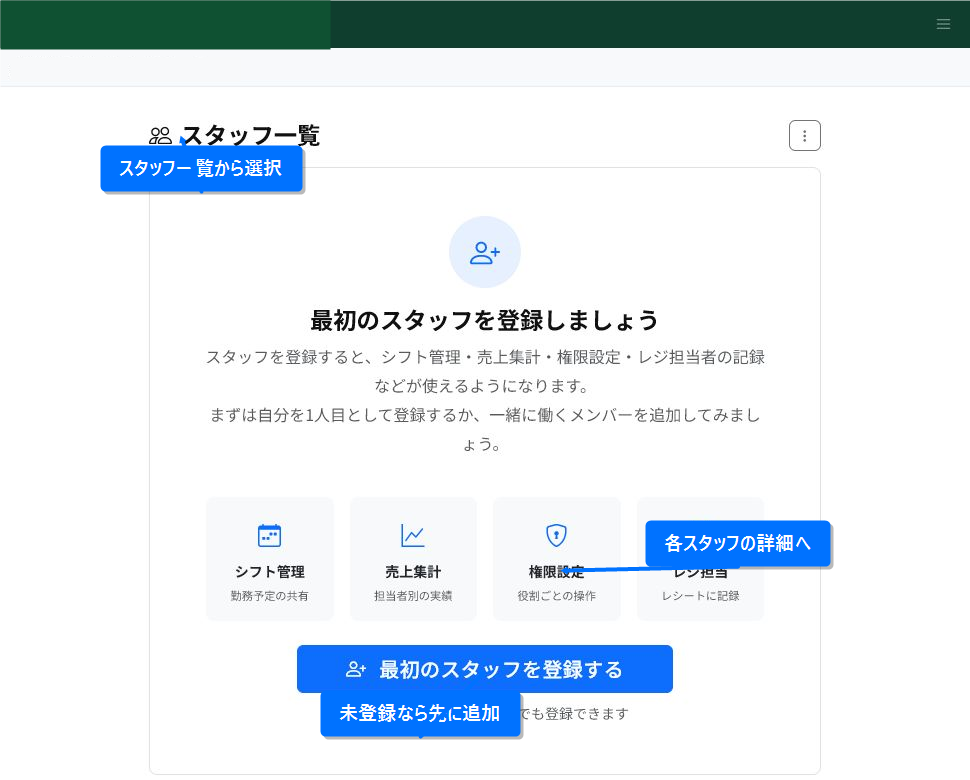
Open the staff list and select the staff member you want to edit. If the staff member hasn't been registered yet, add them first.
From a registered staff member's detail screen, you can view, edit, or delete their profile. Normally you go to profile editing from "Edit" on the detail screen.
Update basic information and the profile photo
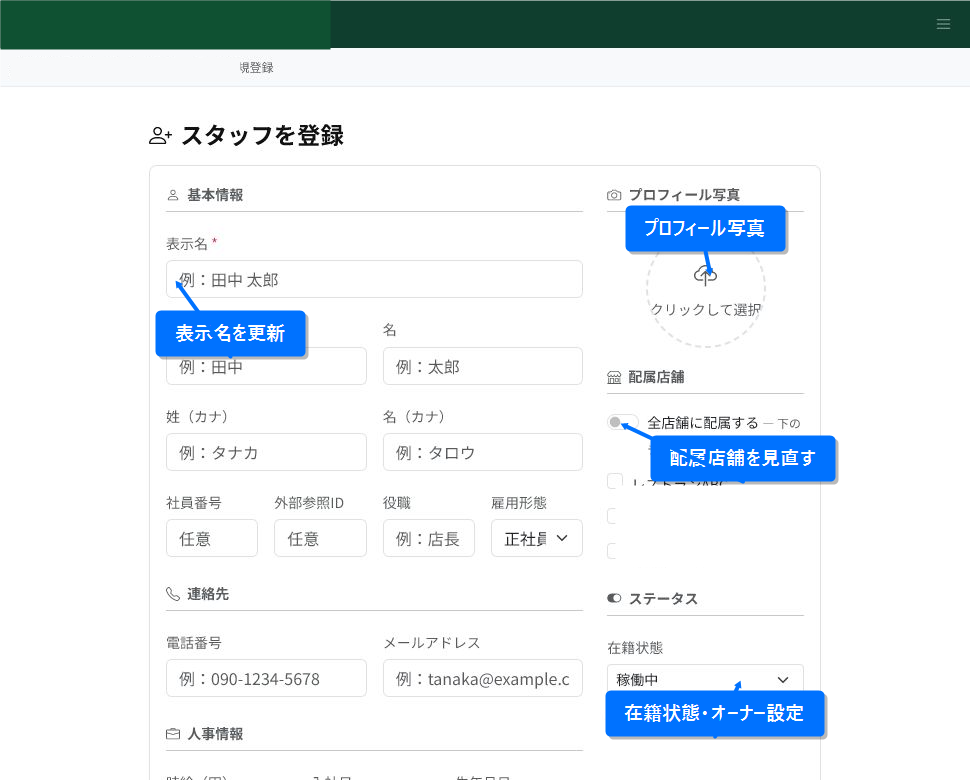
The display name is the name shown in the staff list and other features. Update the name, kana reading, employee number, position, and employment type as needed.
You can upload a profile photo from the circular photo area. Set this if you want to make staff easier to tell apart, or if you want to show photos in shift/staff-in-charge displays.
You can also review the assigned store, employment status, and owner setting here. For staff who are no longer active, such as after leaving or during a leave of absence, changing the employment status before deleting them makes it easier to check their history later.
Update contact information and HR details
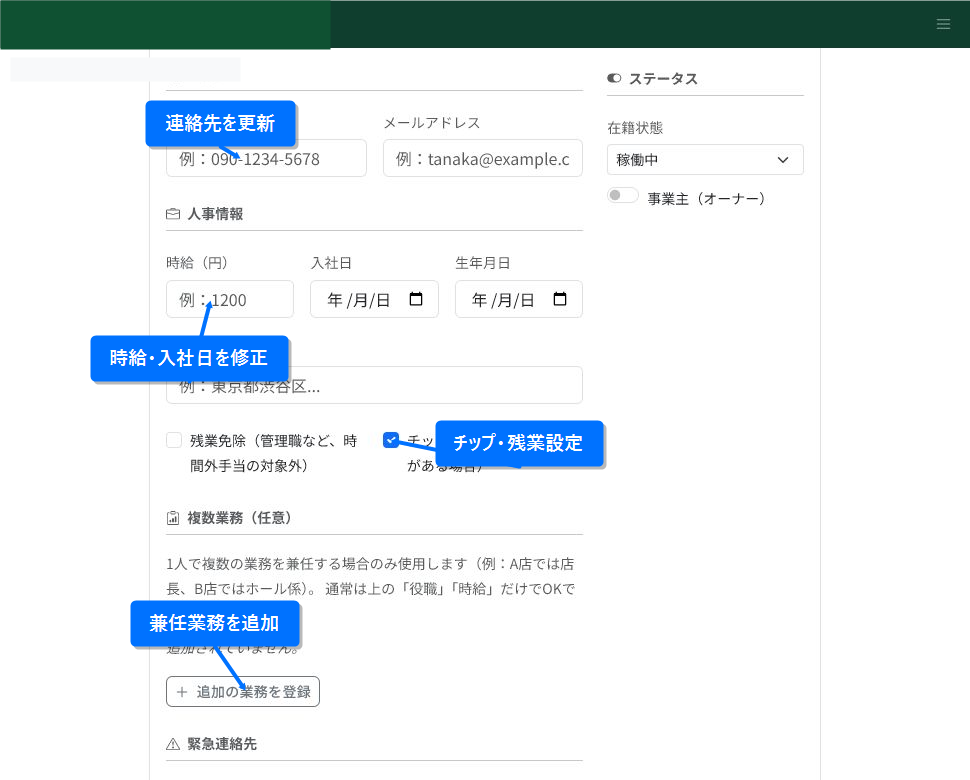
Update the phone number and email address whenever contact information changes. Enter hourly wage, hire date, date of birth, and address to the extent needed for the store's HR management.
At stores that use tip handling, check "Eligible to receive tips." If a manager or similar role is excluded from overtime pay, also check the overtime exemption setting.
If a single staff member holds multiple roles, add or edit the job type and pay conditions from "Register additional role." Usually you don't need to add this.
Update emergency contact and notes, then save
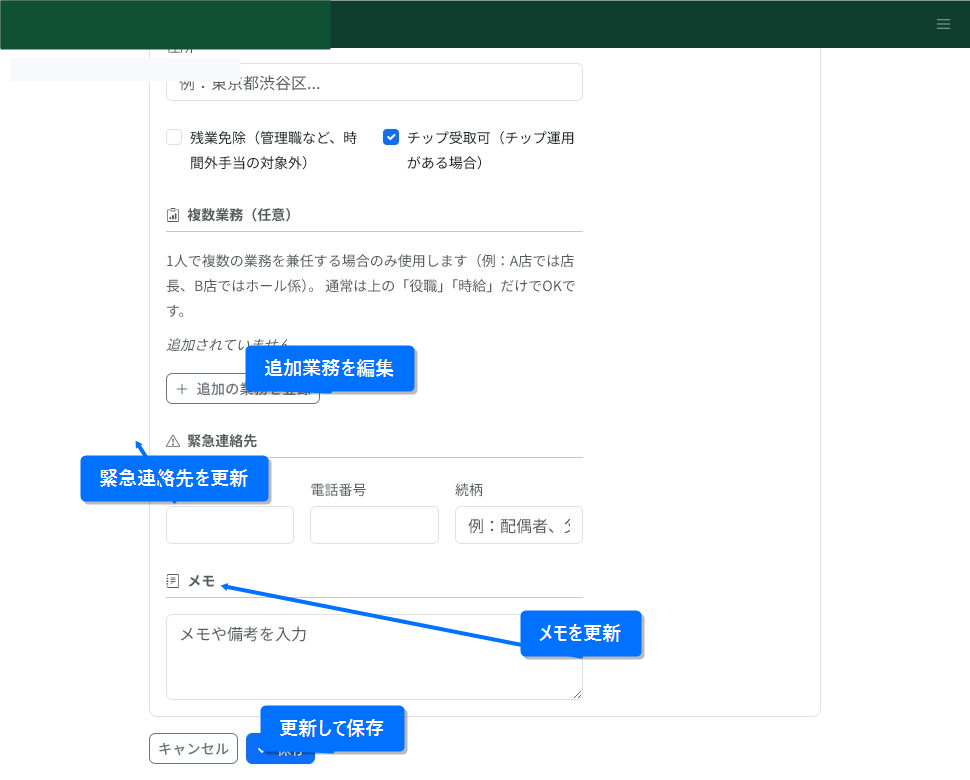
For emergency contacts, you can register a name, phone number, and relationship. Update internal notes and any points to be aware of as needed.
Once you've confirmed the changes, click "Update" or "Save" at the bottom of the screen. After updating, check the content on the staff detail screen.
Key points when updating
- Display name, assigned store, and employment status affect shift and staff-in-charge displays.
- The profile photo is optional. You can register or edit a staff member without setting one.
- Update only the contact and HR fields that are actually needed for your operations.
- Additional roles should only be set for staff who have multiple job types or pay conditions.
- When someone leaves or takes a leave of absence, we recommend deactivating their employment status before deleting them.
Related articles
-
Staff Permissions and Business Account RolesLearn how to assign business account roles (permissions) to staff who log in to Receipt Roller. You can grant permissions suited to each person's role, such as store manager, POS admin, or SNS admin.
-
Registering Staff InformationLearn the steps to register a new staff member, from the list screen through basic info, assigned store, HR info, additional roles, emergency contact, and saving, with screenshots.