Creating Shifts and the Weekly Calendar
In shift management, you can check and create staff work schedules on a weekly calendar for each store. Before creating shifts, you need to assign the relevant staff to the store.
Open shift management from a store
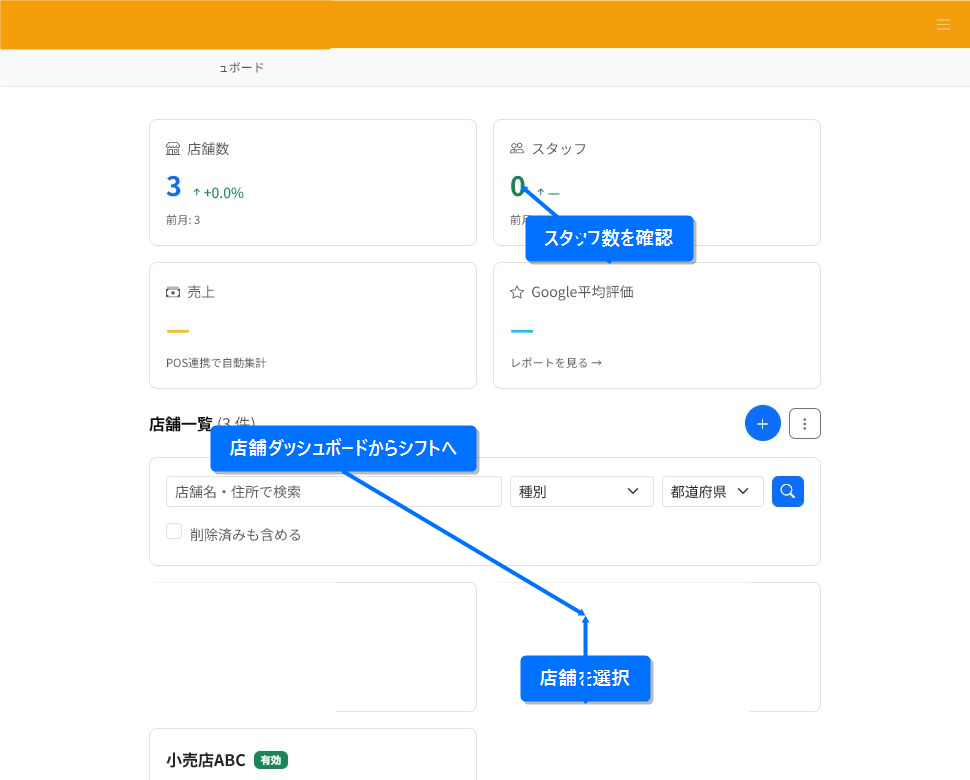
Shifts are managed per store. Open the target store from the store list or the store dashboard to go to shift management.
If the store has 0 staff, first register staff and assign them to the store before creating shifts.
Assign staff to a store
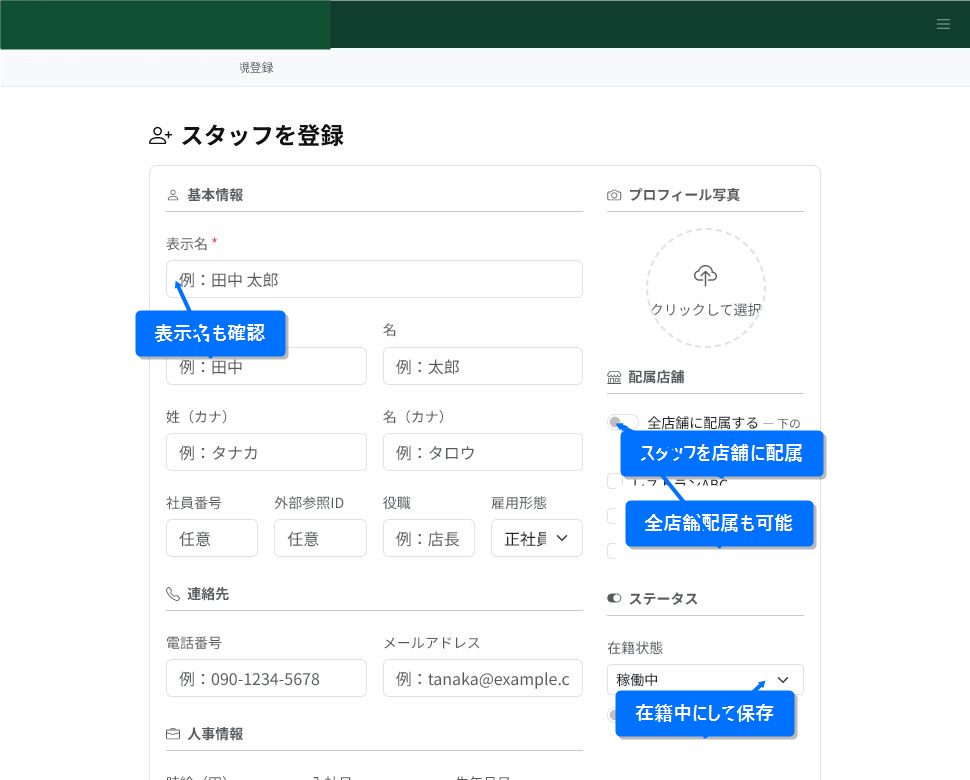
On the staff registration or staff edit screen, assign the relevant staff to the store(s) where they work. For staff who work at all stores, use "Assign to all stores."
For a staff member to appear on the shift calendar, set their employment status to "Employed." For staff who are no longer active, such as after leaving or during a leave of absence, review their employment status.
Check the target week on the weekly calendar
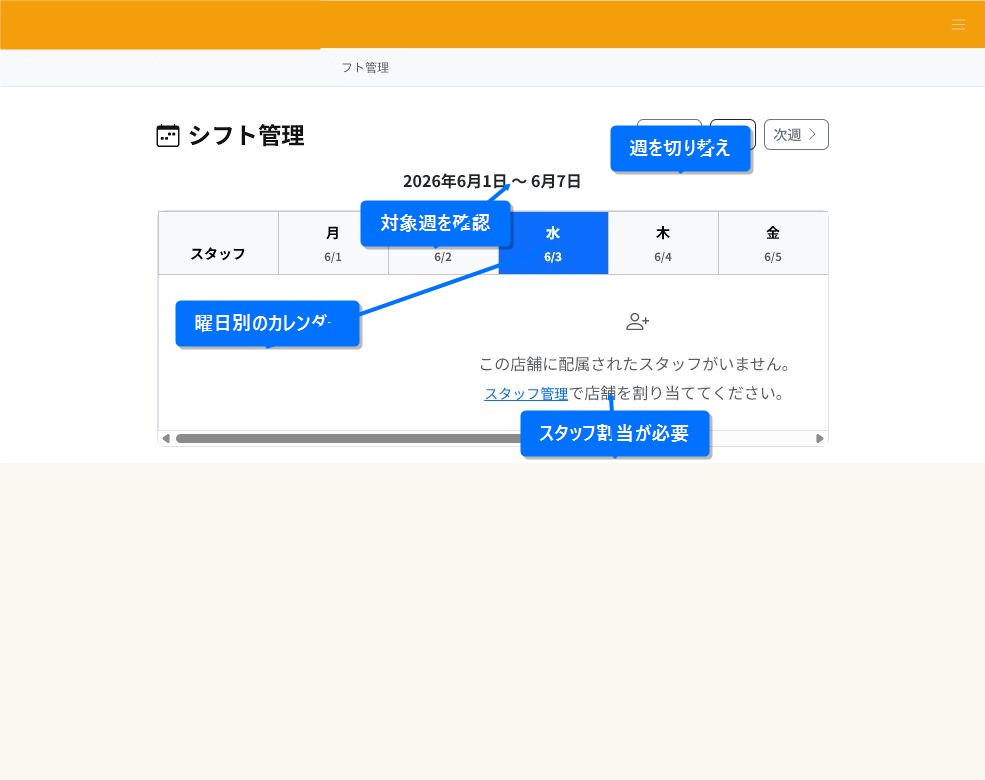
The shift management screen shows a weekly calendar from Monday to Sunday. Use "Previous week," "Today," and "Next week" to switch the target week.
Once staff are assigned to the store, the staff name appears on the left, the day of the week at the top, and the weekly total on the right. Add shifts from each day's cell and enter the time, break, position, and notes.
Create and edit shifts
Once the staff rows appear, add a shift from the cell for the target day. On the registration screen, you can set the staff member, date, start time, end time, break time, position, and notes.
Registered shifts appear on the calendar with their time range. Click a shift to edit it, and delete any shift you no longer need.
Key points to check
- Shifts are managed per store. First confirm the target store.
- If no staff appear, check the store assignment and employment status in staff management.
- Use "Previous week," "Today," and "Next week" to move between weeks.
- When registering a shift, confirm the start/end time and break time.
- Adding a position and notes makes it easier to see each person's role for the day.